
If you have ever seen the top half of a game image suddenly slide sideways from the bottom half during fast camera movement, you have experienced screen tearing. It is one of the most distracting visual artefacts on any display, and it has frustrated gamers for decades. The good news is that tearing is well understood, and there are several reliable ways to eliminate it.
This article explains why tearing happens, when it is most likely to appear, and the practical ways to make it go away on any modern setup.
What Screen Tearing Looks Like
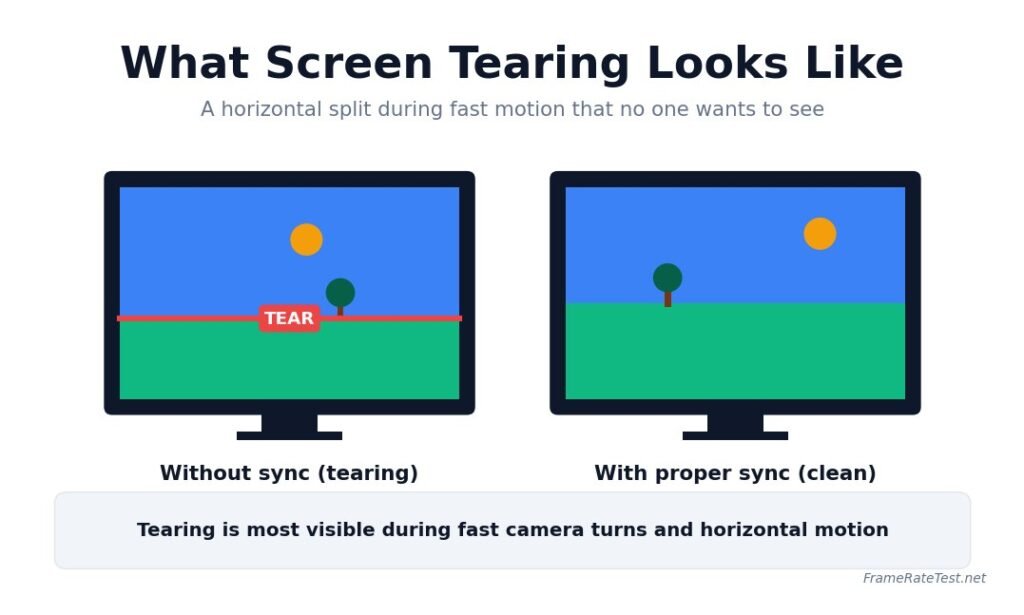
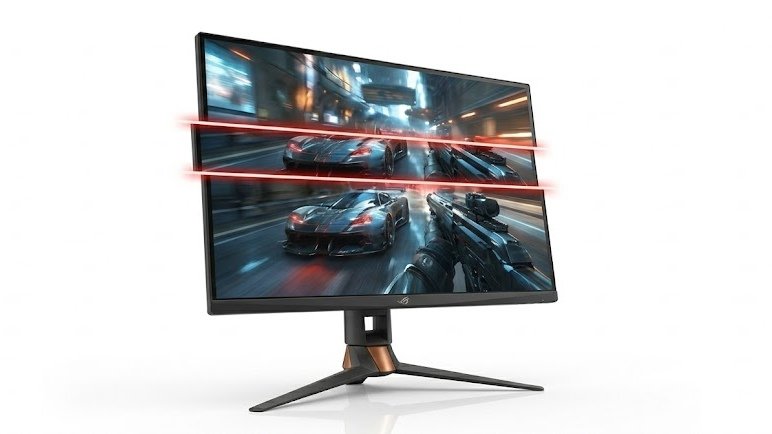
Tearing appears as a horizontal split across the screen during motion. The image above the line shows one frame, and the image below shows another. The split can move up and down rapidly, can appear in multiple places at once, and is most obvious during fast horizontal panning, fast camera turns, or scrolling text.
Why Screen Tearing Happens
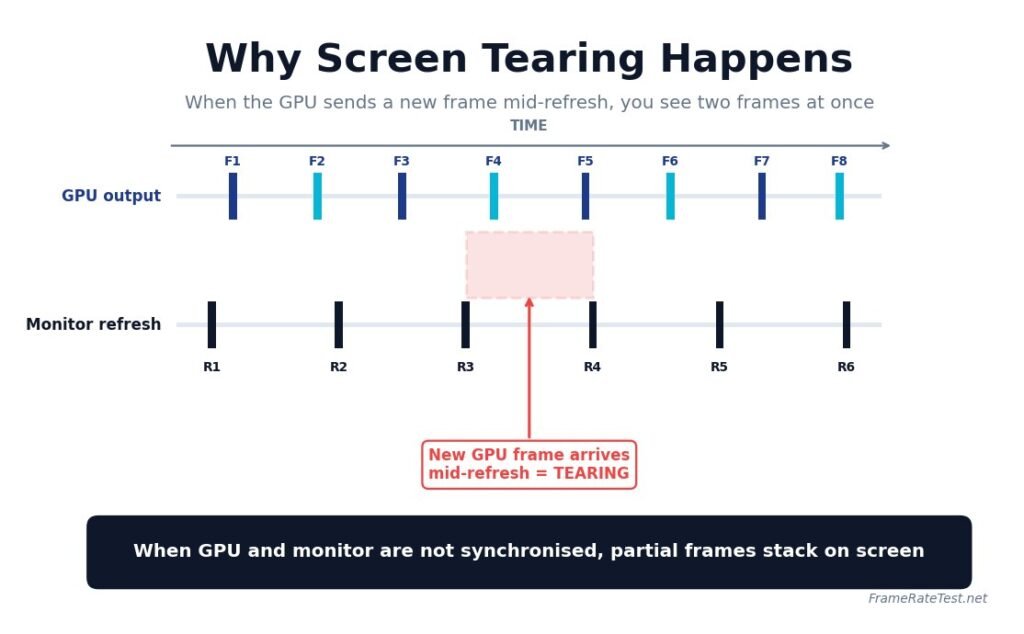
Tearing occurs when your graphics card delivers a new frame to the monitor while the monitor is still drawing the previous frame. The result is two partially stitched frames visible together. This typically occurs when the frame rate (FPS) does not match the display’s refresh rate (Hz). The Wikipedia article on screen tearing gives a clear technical explanation of the underlying mismatch.
It is most noticeable when the frame rate is significantly higher than the refresh rate, because more torn frames are produced per second. It can also appear when the frame rate is below the refresh rate, but less frequently.
Solution 1: V-Sync
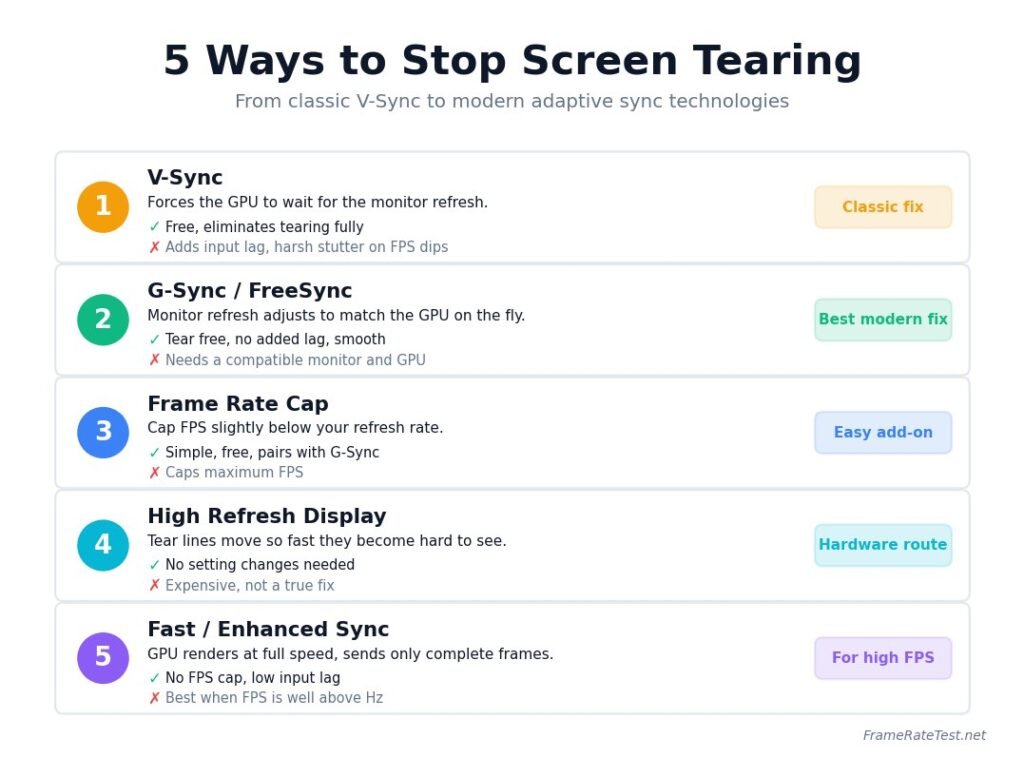
Vertical Sync, also known as V-Sync, is the original solution for screen tearing. It forces the GPU to wait for the monitor to finish refreshing before sending a new frame. This eliminates tearing completely, but introduces two new problems. First, it caps your frame rate to the monitor’s refresh rate. Second, if your FPS drops below the refresh rate, V-Sync can cause stutter and add input lag.
V-Sync is still useful for casual single-player games where input lag does not matter. It is generally a poor fit for competitive multiplayer because of the added latency.
Solution 2: G-Sync and FreeSync
Adaptive sync technologies were designed to solve tearing without the downsides of V-Sync. NVIDIA G-Sync and AMD FreeSync let the monitor’s refresh rate vary on the fly to match the GPU’s frame rate. The result is smooth, tear-free motion with virtually no added input lag.
Most modern gaming monitors include FreeSync, G-Sync, or both. Many televisions sold for gaming also include adaptive sync over HDMI 2.1. To use it, enable the feature in both your graphics control panel and the monitor’s on-screen menu.
Solution 3: Frame Rate Cap Below Refresh Rate
A simple and effective approach is to cap your frame rate slightly below your refresh rate. For a 144Hz monitor, cap FPS at 141. This keeps the GPU in sync with the monitor without forcing the rigid lockstep of V-Sync, and pairs especially well with G-Sync or FreeSync. Most modern GPU control panels include a frame rate limiter.
Solution 4: High Refresh Rate Monitors
Higher refresh rate displays make tearing less visible because each torn frame is on screen for a shorter time. A 240Hz monitor with no sync technology will still tear, but the tear lines move so quickly that the eye has a harder time perceiving them. This is not a true fix, but it does reduce the perceptual impact.
Solution 5: Fast Sync and Enhanced Sync
Both NVIDIA and AMD offer alternatives to traditional V-Sync. NVIDIA’s Fast Sync and AMD’s Enhanced Sync allow the GPU to render frames at full speed and present only completed frames to the monitor when it is ready. NVIDIA Fast Sync explainer covers how this works in practice. These options work best when your frame rate is well above your refresh rate.
Which Solution Is Best for You
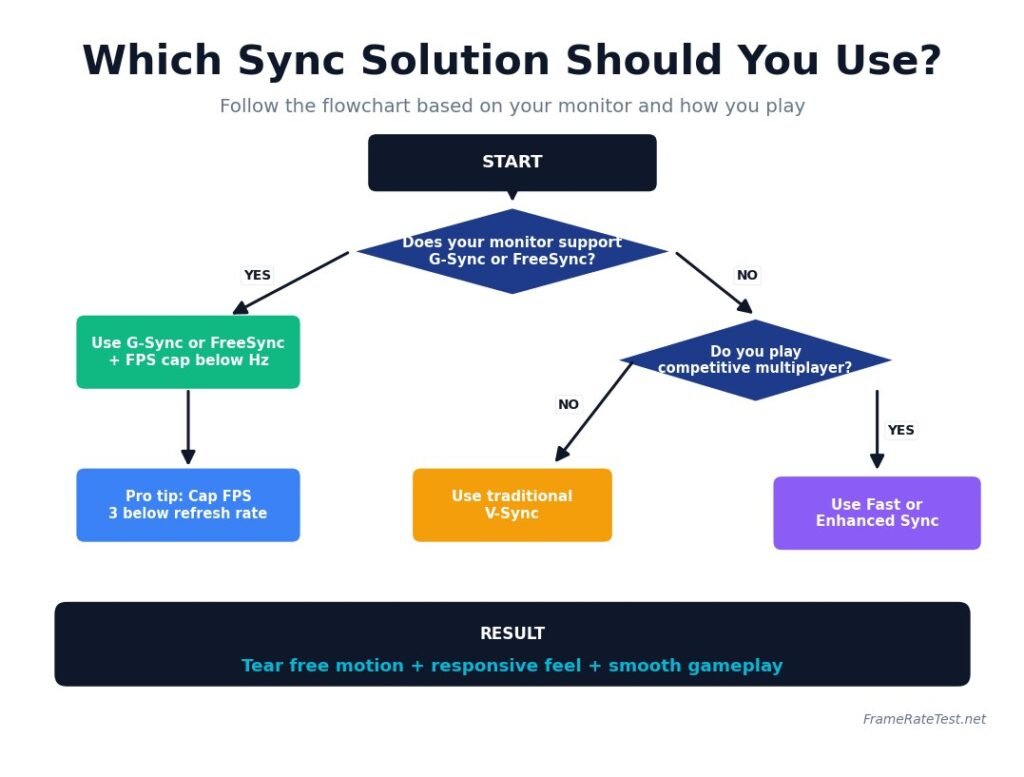
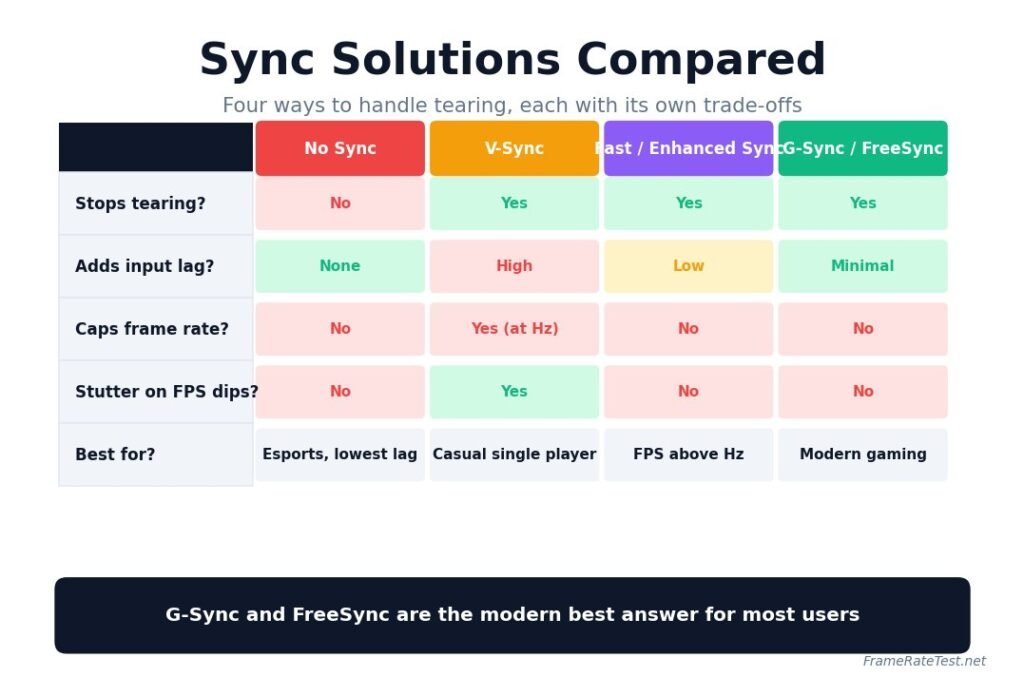
If you have a modern monitor with G-Sync or FreeSync, enable it. Pair it with a frame rate cap a few FPS below your refresh rate for the smoothest results. If your monitor does not support adaptive sync and you play single-player games, V-Sync is fine. If you play competitive multiplayer on a non-adaptive display, use Fast Sync or Enhanced Sync, or accept some tearing in exchange for the lowest possible input lag.
Test Your Setup
Run our frame rate test on FrameRateTest.net to see how many frames your browser produces, then compare that to your monitor’s refresh rate. If your FPS is much higher than your refresh rate, tearing is more likely. The tool also lets you increase rectangle speed so you can intentionally trigger tearing and confirm whether your sync setup is working.
Conclusion
Screen tearing has a clear cause and several reliable fixes. Adaptive sync technologies like G-Sync and FreeSync are the modern best answer for most users, while V-Sync still has its place in casual play. With the right combination of sync technology and frame rate management, you can enjoy completely tear-free motion without sacrificing the responsiveness that makes a high frame rate display feel so good in the first place.
Disclaimer
This article is provided for informational and educational purposes only. Frame rate, refresh rate, and hardware performance can vary widely depending on your device, drivers, browser, operating system, and background workload. Results from any browser-based testing tool, including the one on this site, are approximate and should be treated as a guideline rather than a precise hardware benchmark. Brand names, software, and products mentioned are the property of their respective owners and are referenced only for clarity. Always confirm settings and specifications with your device manufacturer before making purchasing or hardware decisions.