

info@frameratetest.net New York, NY
100% Free No Sign-Up No Download
Frame Rate Test
Home
All Free Testing Tools 13 Tools
Frame Rate TestLive FPS graph and stress test
FPS TestTimed sessions, 1% Low, frame time
Refresh Rate TestAuto-detects Hz, up to 360 Hz
Mouse Polling Rate TestHz measurement, 8000 Hz support
Mouse DPI AnalyzerTrue DPI with deviation analysis
Mouse Scroll Wheel TestScroll direction and step accuracy
Keyboard TesterEvery key, ghosting detection
Spacebar ClickerCPS test, 6 timer modes
Gamepad TesterButtons, sticks, drift, vibration
Dead Pixel TestSolid color screens to find pixels
Dead Pixel FixerRapid color cycling repair tool
Display TestColor, gradient, uniformity check
Screen Bleeding TestBacklight bleed and IPS glow
All tools free, no download required Browse all
Display Tools
Frame Rate TestLive FPS graph with stress levels
FPS TestAdvanced session benchmark
Refresh Rate TestAuto Hz detection, up to 360 Hz
Dead Pixel TestFind stuck and dead pixels
Dead Pixel FixerColor cycling repair tool
Display TestColor, gradient and uniformity
Screen Bleeding TestIPS glow and backlight bleed
Mouse Tools
Mouse Polling Rate TestHz, consistency, live graph
Mouse DPI AnalyzerTrue DPI, 4-axis deviation
Mouse Scroll Wheel TestScroll direction and step check
Keyboard and Input
Keyboard TesterAll keys, ghost key detection
Spacebar ClickerCPS test, 6 timer modes
Gamepad TesterButtons, sticks, drift, vibration
Company
About UsOur story, mission, and team
Contact UsGet in touch with our team
Content
BlogArticles and hardware guides
GuidesHow-to guides and tutorials
Blog
Run FPS Test
Quick: FPS Test Refresh Rate Blog
Frame Rate Test
100% Free No Sign-Up No Download
Performance
Frame Rate TestLive FPS graph and stress test FPS TestTimed sessions, 1% Low Refresh Rate TestAuto Hz detection
Mouse Tools
Mouse Polling Rate TestHz measurement, live graph Mouse DPI AnalyzerTrue DPI with deviation Mouse Scroll Wheel TestScroll direction and steps
Keyboard and Input
Keyboard TesterAll keys, ghosting detection Spacebar ClickerCPS test, 6 timer modes Gamepad TesterButtons, sticks, drift, rumble
Display Tools
Dead Pixel TestFind stuck and dead pixels Dead Pixel FixerColor cycling repair tool Display TestColor, gradient, uniformity Screen Bleeding TestBacklight bleed and IPS glow
Company
About Us Contact Us Blog Guides
Contact info@frameratetest.net
Run FPS Test Now
By using this site, you agree to the Privacy Policy and Terms of Use.
Accept
info@frameratetest.net New York, NY
100% Free No Sign-Up No Download
Frame Rate Test
Home
All Free Testing Tools 13 Tools
Frame Rate TestLive FPS graph and stress test
FPS TestTimed sessions, 1% Low, frame time
Refresh Rate TestAuto-detects Hz, up to 360 Hz
Mouse Polling Rate TestHz measurement, 8000 Hz support
Mouse DPI AnalyzerTrue DPI with deviation analysis
Mouse Scroll Wheel TestScroll direction and step accuracy
Keyboard TesterEvery key, ghosting detection
Spacebar ClickerCPS test, 6 timer modes
Gamepad TesterButtons, sticks, drift, vibration
Dead Pixel TestSolid color screens to find pixels
Dead Pixel FixerRapid color cycling repair tool
Display TestColor, gradient, uniformity check
Screen Bleeding TestBacklight bleed and IPS glow
All tools free, no download required Browse all
Display Tools
Frame Rate TestLive FPS graph with stress levels
FPS TestAdvanced session benchmark
Refresh Rate TestAuto Hz detection, up to 360 Hz
Dead Pixel TestFind stuck and dead pixels
Dead Pixel FixerColor cycling repair tool
Display TestColor, gradient and uniformity
Screen Bleeding TestIPS glow and backlight bleed
Mouse Tools
Mouse Polling Rate TestHz, consistency, live graph
Mouse DPI AnalyzerTrue DPI, 4-axis deviation
Mouse Scroll Wheel TestScroll direction and step check
Keyboard and Input
Keyboard TesterAll keys, ghost key detection
Spacebar ClickerCPS test, 6 timer modes
Gamepad TesterButtons, sticks, drift, vibration
Company
About UsOur story, mission, and team
Contact UsGet in touch with our team
Content
BlogArticles and hardware guides
GuidesHow-to guides and tutorials
Blog
Run FPS Test
Frame Rate Test
Performance Frame Rate Test FPS Test Refresh Rate Test
Mouse Tools Mouse Polling Rate Test Mouse DPI Analyzer Mouse Scroll Wheel Test
Keyboard and Input Keyboard Tester Spacebar Clicker Gamepad Tester
Display Tools Dead Pixel Test Dead Pixel Fixer Display Test Screen Bleeding Test
Company About Us Contact Us Blog Guides
Contact info@frameratetest.net 77 Sands Street, 6th Floor, New York, NY 11201
Run FPS Test Now
Frame Rate TestFrame Rate Test
Aa
Search
Have an existing account? Sign In
Follow US
FPS Basics & Guides

Frame Rate vs Refresh Rate: Real Difference Explained

Tyzhon Kendricks Frame Rate And Display Performance Expert
Last updated: 2026/05/06 at 2:30 PM
Tyzhon Kendricks Frame Rate And Display Performance Expert 9 Min Read
Share
Frame Rate vs Refresh Rate

Frame rate and refresh rate sound like the same thing, and many people use them interchangeably. In reality, they describe two different parts of how motion appears on your screen. Understanding the difference is essential if you want smoother visuals, better gaming performance, or smarter hardware upgrades.

Contents
Defining Frame RateDefining Refresh RateCore Difference in Simple TermsWhat Happens When They Do Not MatchFrame Rate Higher Than Refresh RateFrame Rate Lower Than Refresh RateFrame Rate Equal to Refresh RateWhy a High Refresh Monitor Alone Is Not EnoughReal Examples That Make It ClearCasual UseConsole GamingCompetitive PC GamingHow to Check Your FPS and Refresh RateAdaptive Sync Makes Everything BetterPractical Tips to Get the Best ExperienceConclusion

Defining Frame Rate

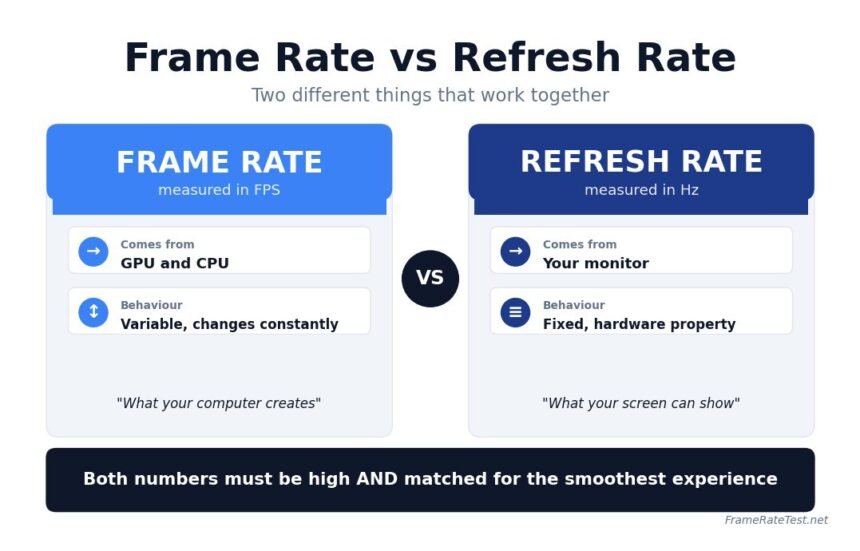
Frame rate refers to how many complete images your system generates every second. It is measured in frames per second, commonly written as FPS.

Your GPU is mainly responsible for producing frames, while the CPU and memory support the process. Every frame is a full image, and when these images are displayed rapidly, they create the illusion of motion.

Frame rate is not constant. It changes depending on several factors:

  • Graphics settings in games or applications
  • Scene complexity, such as lighting, shadows, and movement
  • Hardware performance, including GPU and CPU power
  • Background processes running on your system

For example, a game might run at 120 FPS in a simple scene but drop to 50 FPS during intense action. This fluctuation is normal and one of the key challenges in maintaining smooth performance.

Higher frame rates generally result in smoother motion and better responsiveness. This is especially noticeable in interactive tasks such as gaming, where each frame reflects user input.

Defining Refresh Rate

Refresh rate describes how many times your display updates per second. It is measured in hertz, written as Hz.

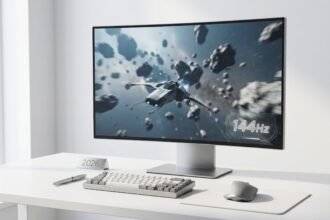
Unlike frame rate, refresh rate is a fixed specification of your monitor, phone, or TV. A 60Hz display refreshes 60 times per second, while a 144Hz display refreshes 144 times per second.

Refresh rate determines the maximum number of frames your screen can show. Even if your system generates more frames, the display cannot show beyond its refresh limit.

Modern devices often offer higher refresh rates for smoother visuals. Many smartphones now support 90Hz or 120Hz, and gaming monitors commonly reach 144Hz, 165Hz, or even 240Hz.

A higher refresh rate improves visual clarity during motion. Scrolling feels smoother, animations look cleaner, and fast-moving objects are easier to track.

Core Difference in Simple Terms

Frame rate is what your system creates. Refresh rate is what your display can show.

Both must work together to produce a smooth experience. If either one is limited, the overall result is affected.

Think of frame rate as the supply of images and refresh rate as the delivery system. If one is faster than the other, performance becomes inefficient or uneven.

What Happens When They Do Not Match
What Happens When They Do Not Match

Understanding mismatches is where most users gain real clarity. This is also where performance issues become visible.

Frame Rate Higher Than Refresh Rate

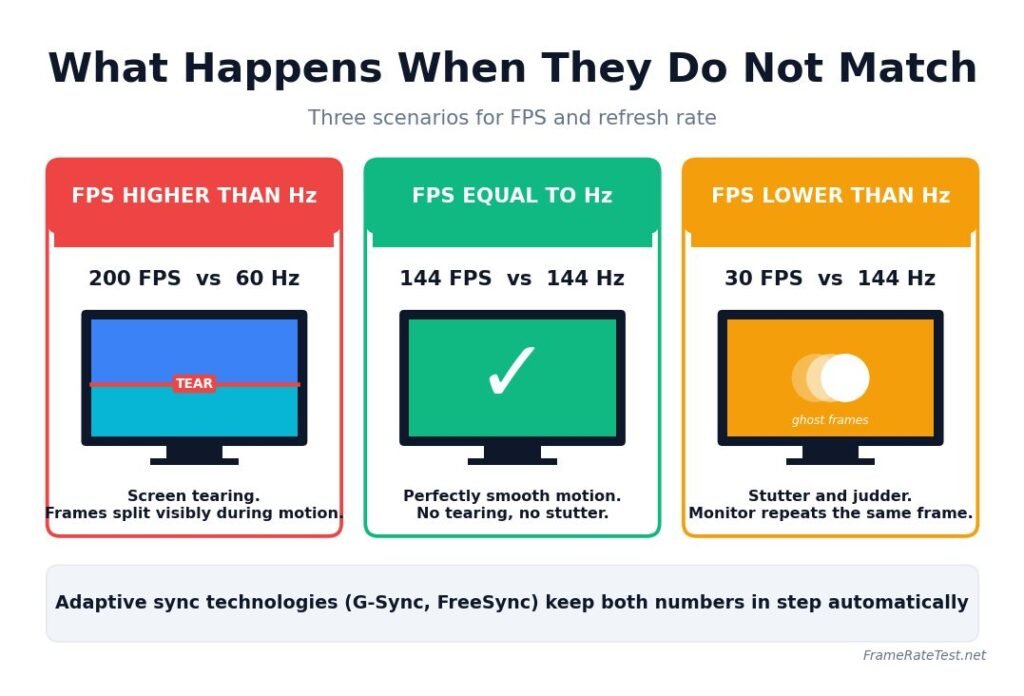
When your GPU produces more frames than your monitor can display, the extra frames are not fully used. This often leads to screen tearing.

Screen tearing happens when parts of multiple frames appear on the screen at the same time. It usually shows up as a horizontal split, especially during fast motion.

This situation is common when:

  • Playing games with very high FPS on a lower refresh monitor
  • Disabling synchronization features like V-Sync

While high FPS still improves responsiveness, visual consistency can suffer.

Frame Rate Lower Than Refresh Rate

When the frame rate is lower than the refresh rate, the monitor repeats frames until a new one arrives. This creates stutter or uneven motion.

For example, running a game at 30 FPS on a 144Hz monitor does not feel smooth. The display is capable of high performance, but the system cannot supply enough frames.

This mismatch is common when:

  • Running demanding games on weaker hardware
  • Using high-resolution settings that reduce performance

The result is a less fluid experience despite having a high refresh rate display.

Frame Rate Equal to Refresh Rate

This is the ideal situation. Each refresh cycle displays a new frame, resulting in smooth and consistent motion.

When frame rate matches refresh rate:

  • Motion appears fluid
  • Input response feels immediate
  • Visual artifacts like tearing are minimized

Achieving this balance is the goal of most optimization techniques and display technologies.

Why a High Refresh Monitor Alone Is Not Enough

Many users assume that upgrading to a high refresh rate monitor will automatically improve smoothness. This is not always true.

A high refresh display only shows its full potential when paired with hardware capable of producing high frame rates.

For example:

  • A 240Hz monitor paired with a system producing 60 FPS will still feel like 60 FPS
  • A 144Hz monitor with a stable 120 FPS will feel significantly smoother

This is why balanced upgrades matter. Investing in a powerful GPU often delivers more noticeable improvements than upgrading the monitor alone.

Real Examples That Make It Clear

Understanding theory is helpful, but real scenarios make the difference easier to see.

Casual Use

For browsing, watching videos, and office work:

  • 60 FPS and 60Hz are usually sufficient
  • Higher refresh rates improve scrolling smoothness, but are not essential

Console Gaming

Most modern consoles target:

  • 30 FPS for cinematic experiences
  • 60 FPS for smoother gameplay
  • Some newer titles support 120 FPS on compatible displays

Competitive PC Gaming

In fast-paced games like shooters:

  • 120 FPS or higher improves reaction time
  • 144Hz or higher monitors provide smoother tracking
  • 240Hz setups are preferred by professional players

Here, both high FPS and high refresh rate provide measurable advantages.

How to Check Your FPS and Refresh Rate

Knowing your numbers helps you understand your system performance.

To check frame rate:

  • Use in-game FPS counters
  • Enable overlays from GPU software
  • Use browser-based tools for quick testing

To check refresh rate:

On Windows:

  • Open Settings
  • Go to System
  • Select Display
  • Click Advanced display settings

On macOS:

  • Open System Settings
  • Select Displays
  • Check refresh rate options

On smartphones:

  • Go to Display settings
  • Look for refresh rate or motion smoothness options

Adaptive Sync Makes Everything Better
Adaptive Sync Makes Everything Better

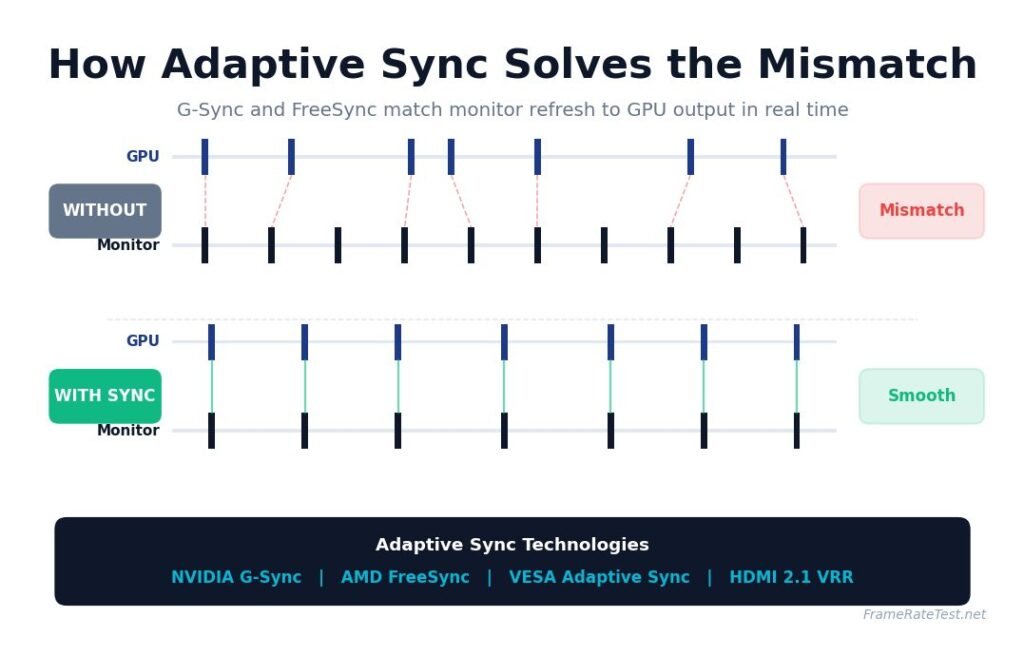
Modern displays include technologies that help match frame rate and refresh rate dynamically.

Popular options include:

  • NVIDIA G-Sync
  • AMD FreeSync

These technologies adjust the monitor’s refresh rate in real time to match the GPU’s frame output.

Benefits include:

  • Reduced screen tearing
  • Smoother motion during frame drops
  • Better overall visual stability

Adaptive sync is especially useful when the frame rate is inconsistent, which is common in demanding games.

Practical Tips to Get the Best Experience

If you want smoother visuals without wasting money, focus on these points:

  • Match your monitor refresh rate with realistic FPS targets
  • Lower game settings if needed to maintain stable frame rates
  • Enable adaptive sync if your monitor supports it
  • Avoid chasing extremely high FPS if your display cannot show it
  • Upgrade GPU performance before upgrading to ultra-high refresh displays

Small adjustments often lead to noticeable improvements.

Conclusion

Frame rate and refresh rate are closely connected but fundamentally different. Your system controls frame rate and determines how many images are created each second. Your display controls refresh rate and determines how many of those images you actually see.

For the best experience, both should be balanced. High frame rates combined with high refresh rates deliver the smoothest and most responsive visuals. Understanding this relationship helps you make better decisions when upgrading hardware, adjusting settings, or troubleshooting performance issues.
Share This Article
Facebook Twitter Email Copy Link Print
By Tyzhon Kendricks Frame Rate And Display Performance Expert
Follow:
Tyzhon Kendricks is a frame rate and display performance expert helping gamers optimize FPS and get smoother gameplay experiences.
Next Article What Is FPS? What Is FPS? A Complete Beginner’s Guide to Frames Per Second
Leave a comment Leave a comment

Leave a Reply Cancel reply

Your email address will not be published. Required fields are marked *

Most Popular

A Memoir of Soccer, Grit, and Leveling the Playing Field
10 Super Easy Steps to Your Dream Body 4X
Mind Gym : An Athlete's Guide to Inner Excellence
Mastering The Terrain Racing, Courses and Training
Is 144Hz Worth It in 2026? Honest Guide for Every Gamer

Is 144Hz Worth It in 2026? Honest Guide for Every Gamer

By Larry Lyons Gaming & Tech Reviewer

Subscribe Now

Subscribe to our newsletter to get our newest articles instantly!

[mc4wp_form]

30 FPS vs 60 FPS vs 120 FPS vs 144 FPS vs 240 FPS Compared

2 weeks ago

PC Gaming FPS Optimization Guide

2 weeks ago

You Might Also Like

How to Check Your FPS on Windows, Mac, PlayStation, Xbox, Android, and More
FPS Basics & Guides

How to Check Your FPS on Windows, Mac, PlayStation, Xbox, Android, and More

2 weeks ago
Why Is My FPS Dropping? 10 Common Causes and How to Fix Them
FPS Basics & Guides

Why Is My FPS Dropping? 10 Common Causes and How to Fix Them

2 weeks ago
PC Gaming FPS Optimization Guide
FPS Basics & GuidesGaming Performance

PC Gaming FPS Optimization Guide

2 weeks ago
What Is FPS?
FPS Basics & Guides

What Is FPS? A Complete Beginner’s Guide to Frames Per Second

2 weeks ago
Frame Rate Test — Free FPS, Monitor and Mouse Testing Tools

Test your device’s frame rate (FPS) and refresh rate online with our free Frame Rate Test tool. Measure FPS, monitor Hz, smoothness, and performance instantly.

100% Free No Install All Devices No Sign-Up
Email Us info@frameratetest.net
Our Office
77 Sands Street, 6th Floor
New York, NY 11201
Testing Tools
  • Frame Rate Test
  • FPS Test
  • Refresh Rate Test
  • Display Test
  • Screen Bleeding Test
  • Dead Pixel Test
  • Dead Pixel Fixer
  • Stuck Pixel Identifier
  • PPI Calculator
Input Tools
  • Mouse Polling Rate Test
  • Mouse DPI Analyzer
  • Mouse Scroll Wheel Test
  • Keyboard Tester
  • Spacebar Clicker
  • Click Speed Test
  • Gamepad Tester
  • Touchscreen Test
  • Latency Reaction Time Test
Company
  • About Us
  • Contact Us
  • Support
  • Blog
Popular Links
  • Home
  • Click Speed Test
  • Gamepad Tester
  • PPI Calculator

© 2026 frameratetest.net — All rights reserved. Free tools to test FPS, refresh rate, mouse DPI and more.

Privacy Policy Terms of Service Cookie Policy DMCA
Welcome Back!

Sign in to your account

Lost your password?