
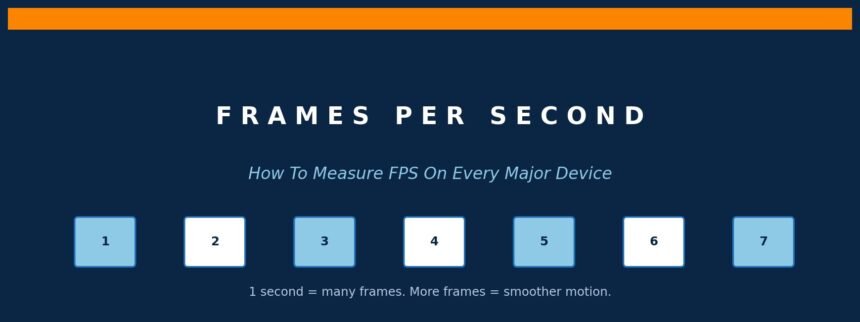
Frames per second, or FPS, is one of the most important numbers in modern gaming and display technology. It tells you how many individual images your device draws on the screen every second. The higher that number, the smoother and more responsive everything looks and feels, from fast competitive shooters to scrolling through your phone.
If you have ever bought a 144Hz monitor, a high refresh rate phone, or a next-generation console, you have already paid for the ability to see more frames. But how do you actually know what your FPS is right now? How do you confirm that your hardware is performing the way it should? That is exactly what this guide is built for.
Below you will find every reliable way to measure FPS on every major device in 2026, from a quick browser test that takes ten seconds to professional-grade overlays trusted by hardware reviewers. We have also added explainer diagrams, troubleshooting steps, and a full FAQ so that this single article can serve as your long-term reference.
What Is FPS and Why Does It Matter
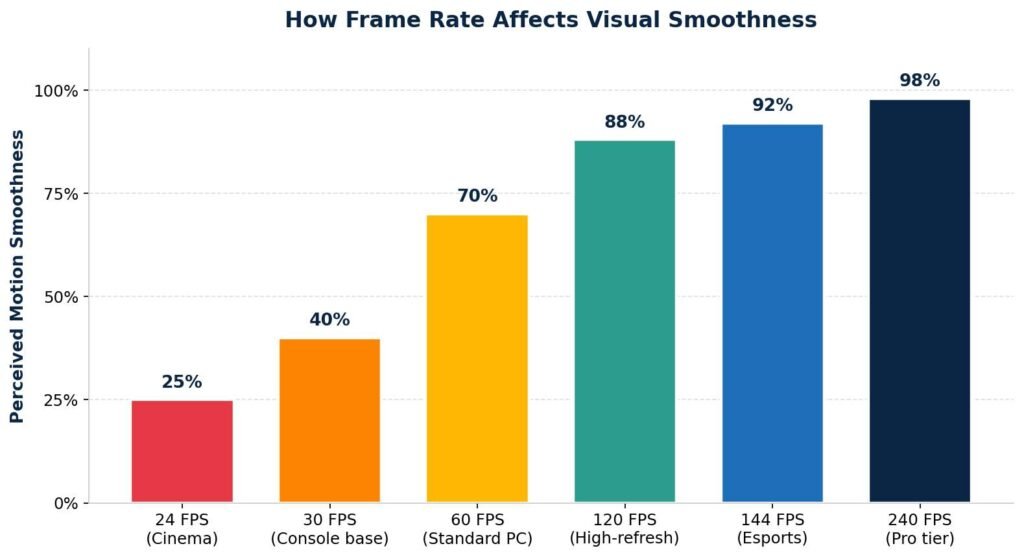
FPS stands for frames per second. Every video, game, and animation on a screen is really just a sequence of still images shown one after another. When those images are shown fast enough, your brain blends them into smooth motion. The faster the images appear, the smoother the motion becomes.
At 30 FPS, your eyes can clearly notice individual frames during fast camera movement. At 60 FPS, the motion looks markedly smoother. At 120 FPS and above, the difference becomes most obvious in fast-paced content like first-person shooters, racing games, and rapid scrolling on a phone or tablet.
Quick fact: The human eye does not max out at 30 or 60 FPS. Studies have shown that trained gamers can perceive differences well above 240 FPS, particularly in motion clarity and reaction time. This is why professional esports monitors often run at 240Hz, 360Hz, or even 540Hz.
FPS vs Refresh Rate: Two Numbers, Two Meanings
Many people use FPS and refresh rate interchangeably, but they describe two completely different things. Understanding the distinction will save you from buying the wrong hardware or chasing performance you can never actually see.
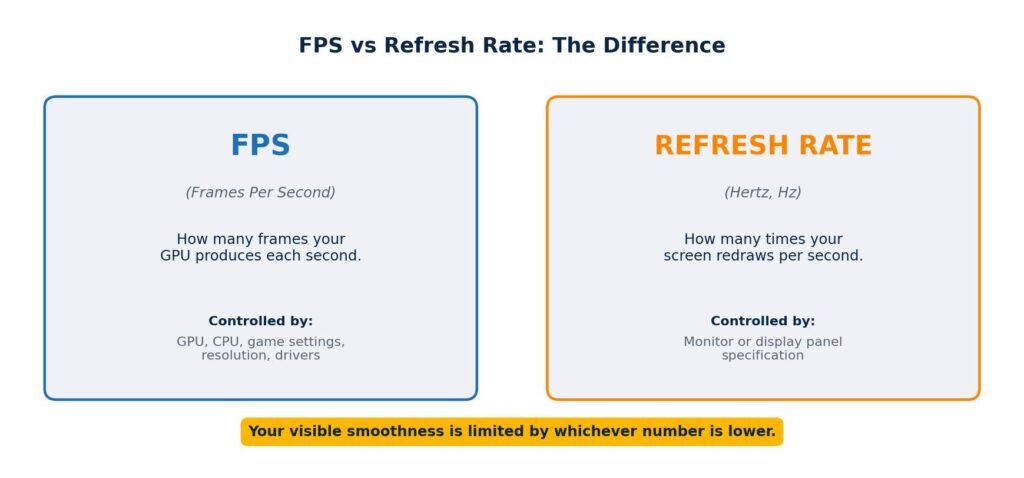
Your GPU and CPU produce FPS. It changes constantly based on what is happening on screen, which game settings you use, and what other software is running.
Refresh rate is a fixed property of your display panel. A 60Hz screen physically cannot show more than 60 different images per second, no matter how fast your GPU runs.
If your GPU produces 200 FPS but your screen runs at 60Hz, you will only ever see 60 unique frames per second. The other 140 frames are wasted. The reverse is also true. A 240Hz monitor connected to a weak GPU rendering only 45 FPS will not feel smooth, because the bottleneck is the GPU.
Pro tip: Always match your hardware. Pair a high refresh rate display with a GPU that can actually push high frame rates in the games you play. Otherwise, you are paying for headroom you cannot use.
Fastest Way to Check FPS on Any Device
The simplest, most universal way to check frame rate is a browser-based test. Visit FrameRateTest.net in any modern browser on any device, whether that is a Windows PC, a MacBook, an iPhone, an Android tablet, a smart TV with a browser, or even a console with a built-in web browser. The tool measures how many frames your browser is rendering per second and shows the result in real time.
This is the fastest way to confirm that your display, drivers, and browser are all cooperating at the full refresh rate of your screen. It will not measure in-game FPS directly, but it is a perfect zero-install reality check before you start digging into platform-specific tools.
When to use a browser FPS test
Use it when you want to verify a display is hitting its advertised refresh rate, when you want to compare two browsers on the same device, when you cannot install software on a work or school machine, or when you want a quick sanity check before benchmarking a game.
How to Check FPS on Windows
Windows offers more native and third-party FPS tools than any other platform. The built-in options will serve most gamers well, but power users and reviewers usually rely on at least one dedicated overlay for the extra detail it provides.
Method 1: Steam Overlay
If you play games on Steam, the platform includes a free, built-in FPS counter that works in nearly every game launched through it. Open Steam, click the Steam menu in the top left, and choose Settings. From there, go to In Game, then enable the In Game FPS Counter and pick a corner of the screen to display it.
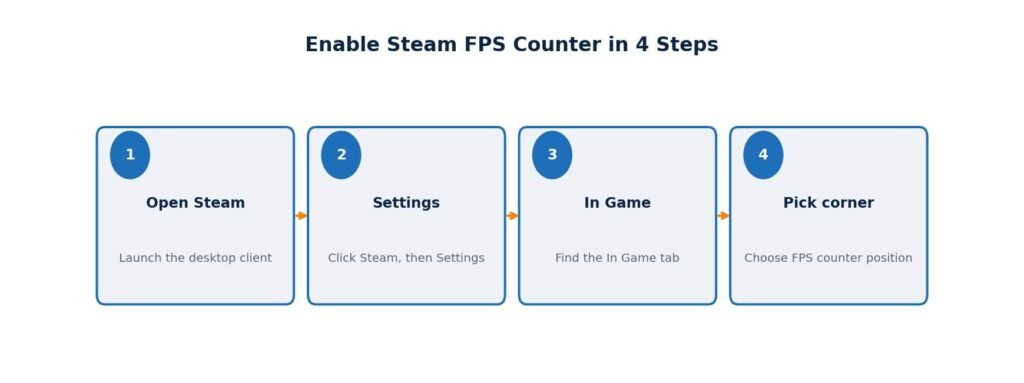
You can also tick the High contrast color option to make the counter easier to read against bright backgrounds. The counter will now appear in every Steam game in your chosen corner.
Method 2: Xbox Game Bar
Windows includes the Xbox Game Bar, which has a built-in performance widget. Press the Windows key plus G to open it. The performance overlay shows real-time FPS, CPU usage, GPU usage, and RAM usage. Microsoft documents the Game Bar in detail in its official support article.
The first time you open Game Bar inside a game, Windows may ask you to confirm that what you are looking at is a game. Once confirmed, you can pin the performance widget so it stays on screen permanently.
Method 3: NVIDIA GeForce Experience and the Overlay
If you have an NVIDIA GPU, install GeForce Experience or the newer NVIDIA App. The included ShadowPlay overlay can display FPS in any game in the corner of your choice, alongside GPU temperature, clock speed, and even a frame time graph for advanced users.
To enable it, open the NVIDIA App, press Alt plus Z to bring up the overlay, choose Performance, then Performance Monitoring, and pick a position. The Advanced view also unlocks a one percent low display, which is the best way to spot stutter that average FPS hides.
Method 4: AMD Adrenalin Software
AMD users can use the built-in performance overlay inside AMD Software Adrenalin Edition. Open Adrenalin, head to Performance, then Metrics, and toggle Show Metrics Overlay. You will get FPS, frame time, GPU usage, GPU temperature, and memory usage out of the box.
AMD also offers a Recording and Streaming module that lets you save your FPS logs to a CSV file, which is extremely useful when comparing settings or hunting for stutter.
Method 5: MSI Afterburner with RivaTuner Statistics Server
For the most detailed data possible, install MSI Afterburner together with RivaTuner Statistics Server, which is bundled in the same installer. This combination is the gold standard tool used by hardware reviewers and benchmarkers worldwide.
It can display FPS, frame time graph, GPU and CPU usage per core, temperatures, fan speeds, voltages, clock speeds, VRAM usage, and system memory usage. You can fully customize the on-screen display, choose font sizes, colors, and even export logs for analysis in spreadsheets.
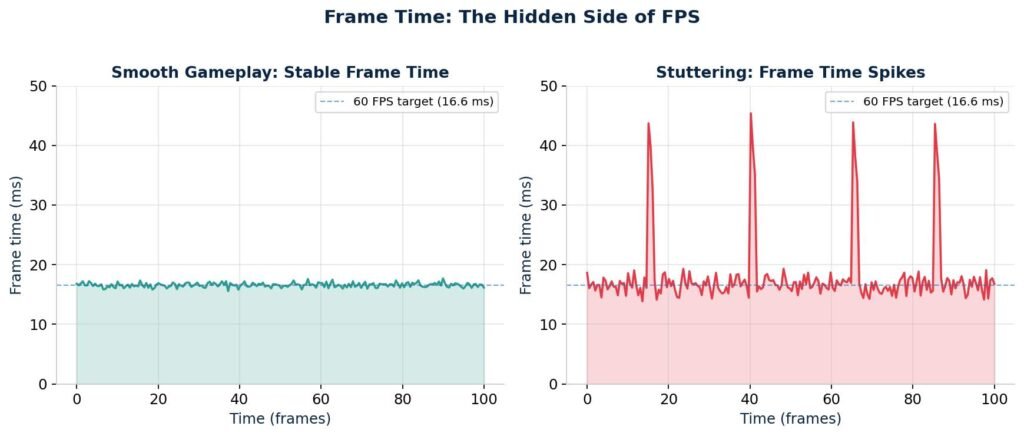
Why frame time matters more than average FPS
Average FPS hides hitches and stutters. A game running at an average of 90 FPS can still feel jittery if frame time spikes occasionally to 50 milliseconds. Always watch the frame time graph or the one percent low number, not just the average.
Method 6: In-Game FPS Counters
Most modern games include their own FPS counter in the video or HUD settings. Titles like Fortnite, Call of Duty, Cyberpunk 2077, Counter Strike 2, Valorant, and Apex Legends all have an option to show FPS without any third-party software at all. If you only want to confirm a single game runs well, this is the easiest method.
How to Check FPS on macOS
macOS has fewer dedicated FPS tools than Windows, but the most common methods still work. The Steam overlay behaves identically on Mac as it does on Windows. Most native Mac games and Apple Arcade titles include their own FPS toggle inside their video options.
Browser FPS testing is also a strong option. The FrameRateTest.net tool runs perfectly in Safari, Chrome, and Firefox, and is a great way to confirm that your MacBook Pro or Studio Display is reaching its advertised ProMotion 120Hz refresh rate.
Quartz Debug for Developers
Developers and power users can enable Quartz Debug, which is part of the Additional Tools for Xcode bundle. Download it from the Apple Developer downloads page, launch Quartz Debug, and enable Show Frame Meter. This places a small graph on screen that tracks the frame rate of the entire macOS desktop. It is overkill for casual use, but indispensable when profiling apps.
How to Check FPS on PlayStation 5
Sony does not include a system-wide FPS counter on PlayStation 5. There is no menu option, no developer flag, and no first-party overlay that displays real-time frames per second across all games. Instead, Sony lets game developers expose performance modes inside each title.
Most modern PS5 games offer at least two graphics modes. Performance mode targets a higher and smoother frame rate, usually 60 FPS, by reducing resolution or visual effects. Quality mode prioritizes resolution and effects at a lower frame rate, often 30 FPS. A growing number of titles also include a 120Hz mode, which targets 120 FPS on a compatible TV.
To unlock 120Hz output, your TV must support 4K at 120Hz over HDMI 2.1, and the option must be turned on in the console settings. Sony documents the full setup in their official PlayStation 5 display settings guide.
How to verify 120Hz output on PS5
Go to Settings, Screen and Video, Video Output. Look for 120Hz Output and set it to Automatic. If your TV and HDMI cable support it, the field will switch on. If not, the option will remain greyed out, and the issue is usually the cable or input.
For exact FPS measurement, third-party HDMI capture devices and external software like Digital Foundry-style frame analysis tools are the only reliable option, since the console itself does not display the number.
PlayStation 4 and PlayStation 4 Pro
The older PlayStation 4 family does not show FPS at the system level either. It supports up to 60Hz output, and most games target either 30 or 60 FPS, depending on the title. Performance modes exist on the Pro for select games, but the easiest way to estimate frame rate is to play the game side by side with reference footage from a trusted reviewer or to use an HDMI capture card.
Nintendo Switch and Switch 2
Nintendo consoles do not provide any built-in FPS display. Most Switch games target 30 or 60 FPS, depending on docked or handheld mode. The Switch 2 brings 120Hz support and DLSS upscaling to many titles, but again with no native counter. Capture cards remain the only precise way to measure.
Steam Deck and Other Handheld PCs
Steam Deck has the most gamer-friendly FPS overlay of any handheld. Press the three-dot menu button while in any game, choose Performance, then enable the overlay. Levels 1 to 4 progressively add more information, with level 4 showing FPS, frame time, GPU usage, CPU usage, and temperatures simultaneously. ROG Ally and Legion Go users can use Armoury Crate or Legion Space to access similar overlays.
How to Check FPS on Xbox Series X and Series S
Xbox Series X and Series S consoles support FPS Boost on selected backwards compatible titles, plus high frame rate modes in many newer games. Microsoft maintains an updated list of supported games and frame rate modes in its FPS Boost announcement and updates. The Xbox itself does not display a real-time FPS counter, but you can confirm 120Hz output is active in the display settings under TV and Display Options.
To check, press the Xbox button, go to Profile and System, Settings, General, TV and Display Options, then Video Modes. Make sure 120Hz and Allow 4K modes are both ticked. The Xbox will only let you tick these if your TV signals that it supports them.
Xbox One and Xbox One X
The previous generation Xbox One family does not support 120Hz or system-wide FPS counters. Most titles run at 30 or 60 FPS, depending on the game. Xbox Insiders and developers can access deeper performance information through dev mode, but this requires a paid developer account.
How to Check FPS on Android
Android offers some of the most accessible refresh rate and FPS tools on any platform once you know where to look. Most modern Android phones include a built-in refresh rate display in the developer options menu, and many manufacturers add their own gaming dashboards on top.
Enable Show Refresh Rate in Developer Options
Open Settings, then About Phone or About Device. Find the Build Number entry and tap it seven times. You will see a message saying You are now a developer. Go back, open System, then Developer Options. Scroll down until you find Show Refresh Rate and turn it on. A small number will now appear in the corner of every screen, displaying the current refresh rate in real time.
Why is this useful
Many phones with 120Hz displays only run at 60Hz in certain apps to save battery. Show Refresh Rate lets you confirm whether your phone is actually using the full refresh rate where it matters, like in your favorite game or while scrolling social media.
Manufacturer Game Boosters
Samsung devices include Samsung Game Booster inside Game Launcher, which adds an FPS counter, performance modes, and stutter detection. ASUS ROG Phone owners can use ASUS Game Genie for the same purpose. Xiaomi Game Turbo, OnePlus Game Mode, and Realme Game Space all offer similar in-game overlays with FPS, CPU, and GPU usage.
Third-Party Apps
Apps like GameBench, Perfdog, and the open source FPSMeter give independent FPS readings on rooted and unrooted devices. They are particularly useful for content creators or app testers who need precise numbers across different phones.
How to Check FPS on iPhone and iPad
Apple does not include a public FPS counter in iOS or iPadOS. There is no developer toggle visible to regular users, and no overlay you can pin from the control center. Game developers can build their own counters into apps, and some performance-focused titles like Genshin Impact or Call of Duty Mobile show FPS inside their settings menu.
The FrameRateTest.net browser tool is the simplest way to check that Safari is rendering at the full ProMotion refresh rate on supported iPhone Pro and iPad Pro models. If the result reads close to 120 FPS, your device is correctly using ProMotion. If it caps at 60 FPS, the website or system has throttled it, which is expected behavior in many situations to save battery.
Xcode Instruments for Developers
If you have a Mac and a free Apple developer account, you can connect your iPhone and use Xcode Instruments to profile any app or game frame by frame. The Core Animation and Metal templates show the exact FPS the device is rendering, plus GPU usage and frame time.
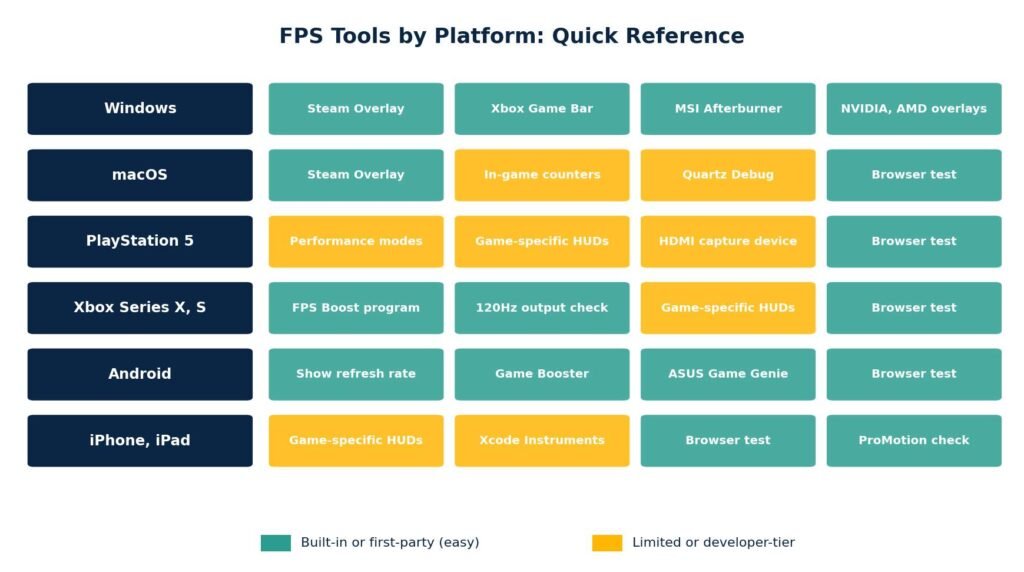
FPS Tools by Platform at a Glance
If you only need a quick reference, this comparison summarizes which method works best on each device. Built-in or first-party tools are easiest, while developer-level tools give the most accurate data.
What Actually Determines Your FPS
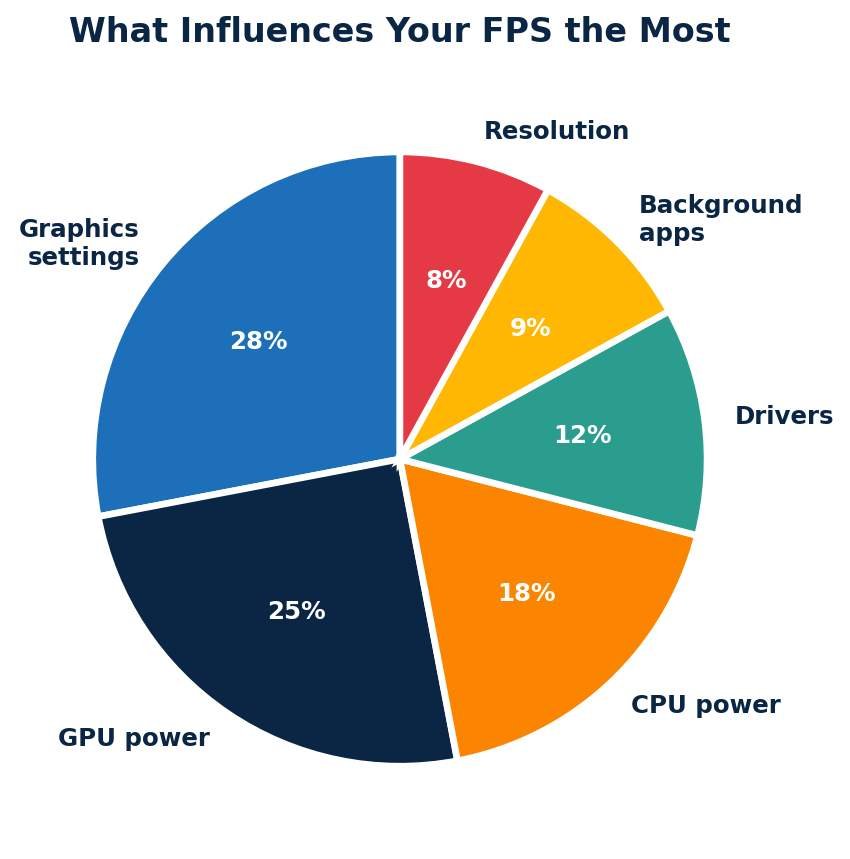
Once you know how to measure FPS, the next question is naturally what controls it. The short answer is a combination of hardware, software, and settings, but some factors weigh much more than others.
Graphics settings are usually the biggest single lever. Lowering shadow quality, post-processing, and anti-aliasing often doubles FPS in demanding titles with very little visible difference. GPU power is the next most important factor, followed by CPU power, for games that simulate many objects or AI agents.
Drivers, background apps, and resolution then fill out the picture. An outdated GPU driver can cost you twenty percent of your performance overnight, and a chat app sharing your screen can quietly drop you from 144 to 90 FPS without warning.
Low FPS Troubleshooting Guide
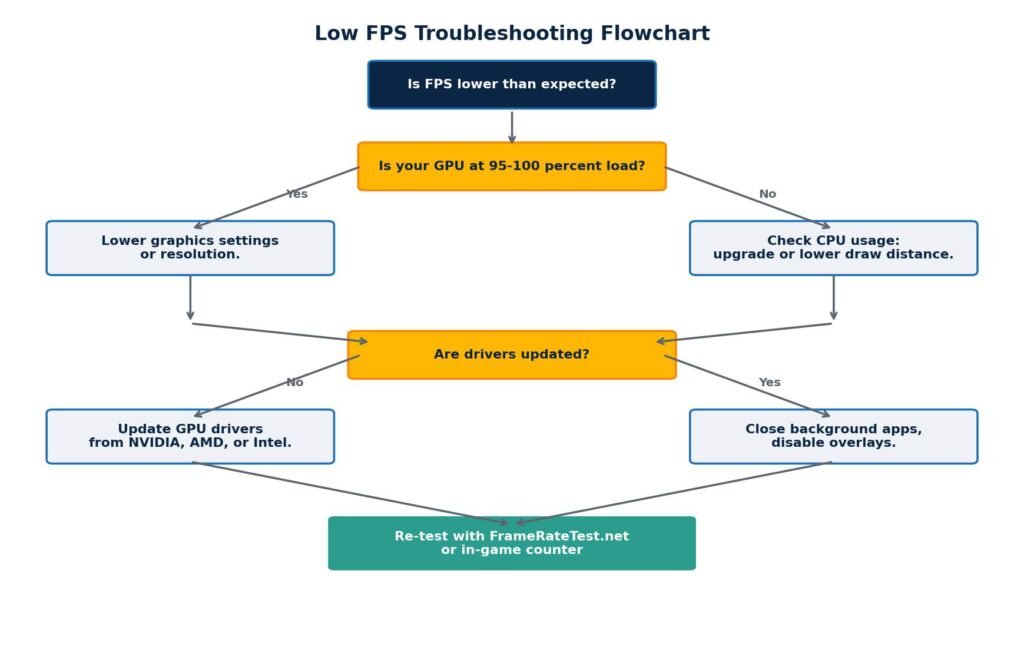
If your measured FPS is lower than you expected, work through this flowchart in order. It walks you through the most common causes from most to least likely, so you can fix the easy issues before tearing your system apart.
Step 1: Check GPU Load
Open MSI Afterburner, the NVIDIA Performance Overlay, or AMD Adrenalin. If your GPU usage sits at ninety-five to one hundred percent and FPS is still low, your GPU is the bottleneck. Lower the resolution, drop graphics settings, or upgrade the card.
Step 2: Check CPU Load
If GPU usage is below eighty percent but FPS is still low, your CPU is likely the bottleneck. Watch per-core usage, since some games stress only one or two cores. Reducing draw distance, crowd density, and physics quality often helps.
Step 3: Update Drivers
Both NVIDIA and AMD release game-ready drivers for major titles. Always install the latest stable driver for the games you play. On Windows, also make sure your chipset and Windows itself are up to date.
Step 4: Close Background Apps
Browsers, chat apps, streaming software, and even some antivirus tools can quietly use GPU and CPU cycles. Press Ctrl + Shift + Esc, open Task Manager, and close anything you do not need while gaming. Disable extra overlays from Discord, Razer Synapse, or RGB software if you do not actively use them.
Step 5: Check Thermal Throttling
If FPS starts high and steadily drops over five to ten minutes of play, your CPU or GPU is probably overheating and throttling. Watch temperatures in your overlay. Anything above 8585 degrees Celsius for a sustained period usually means dirtying the fans, re-pasting the cooler, or improving case airflow.
Quick Tips to Improve Your FPS
After measuring your current performance, these adjustments deliver the biggest improvements with the least effort. Try them in roughly this order before considering a hardware upgrade.
- Lower resolution from 4K to 1440p, or from 1440p to 1080p, in demanding games.
- Drop shadow quality and post-processing first. They cost a lot of performance for little visible gain.
- Turn off motion blur, depth of field, and chromatic aberration unless you specifically like them.
- Enable DLSS, FSR, or XeSS upscaling if your GPU supports it. These can deliver thirty to seventy percent more FPS.
- Set your power plan to High Performance on Windows, or Performance mode on macOS and mobile devices.
- Update your GPU, chipset, and operating system drivers to the latest stable versions.
- Disable unused overlays, browser tabs, and background recording software.
- Make sure your monitor cable supports the refresh rate you want. Many display problems trace back to an old or low-quality HDMI cable.
Frequently Asked Questions
Is 60 FPS enough for gaming in 2026
- For most single-player and casual games, yes. 60 FPS feels smooth and responsive. For competitive shooters, racing games, and rhythm games, 120 FPS or higher gives a measurable advantage in motion clarity and reaction time. Esports professionals almost always play at 240 FPS or above.
Why is my FPS lower than my refresh rate?
- Refresh rate is the maximum number of times per second at which your screen can refresh. FPS is what your GPU is actually producing. If your GPU cannot keep up with the game settings you have chosen, you will see lower FPS than your monitor can display. Lower the settings, lower the resolution, or upgrade your GPU.
Can checking FPS hurt my game performance
- On PC, a lightweight overlay like Steam or the Game Bar costs less than 1% of FPS. Heavy overlays with many sensors active, especially in MSI Afterburner, can cost two to four percent. On consoles and phones, native solutions have effectively zero impact.
Why does my FPS feel laggy even though the number is high?
- This is almost always a frame time or input lag problem rather than an FPS problem. Look at the frame time graph. If you see spikes, your game is stuttering even at high average FPS. V-Sync, G-Sync, FreeSync, and frame generation can all introduce latency that the FPS counter does not show.
What is a 1 percent low, and why should I care
- The 1% low is the average FPS during the worst 1% of frames in a benchmark. It is a far better indicator of how smooth a game actually feels than the average FPS. A game with an average of 120 FPS but a one percent low of 40 FPS will feel jerky. A game with an average of 90 and a 75th percentile low will feel buttery smooth.
Does the FrameRateTest.net browser test work on consoles
- Yes, on any console with a working web browser. PlayStation 5, Xbox Series consoles, Nintendo Switch via homebrew browsers, and most smart TVs can run a browser FPS test, although results may be capped by the browser rather than reflecting in-game performance.
Will a higher FPS make my game look different?
- It will look smoother, especially when the camera moves. The image quality of each frame remains unchanged, but the perceived clarity of motion improves dramatically. This is why action games at 120 FPS look almost photorealistic in motion compared to the same game at 30 FPS.
Conclusion
Every major platform now offers some way to measure or report frame rate, though the methods vary widely. Use a browser-based test for fast cross-device checks, in-game overlays for accurate gameplay numbers, and dedicated tools like MSI Afterburner or Adrenalin for serious performance analysis.
Once you know how to read your FPS on every device you own, optimization and troubleshooting become much easier. You can tell at a glance whether your hardware is performing as it should, identify which setting is hurting you the most, and make informed decisions about upgrades. The number on screen is just the beginning. The real value is in what you do with it.
Bookmark FrameRateTest.net as your fastest cross-platform check, and revisit this guide whenever you switch devices, install a new game, or want to make sure you are getting every frame you paid for.
Disclaimer
This article is provided for informational and educational purposes only. Frame rate, refresh rate, and hardware performance can vary widely depending on your device, drivers, browser, operating system, and background workload. Results from any browser-based testing tool, including the one referenced on this site, are approximate and should be treated as a guideline rather than a precise hardware benchmark.
Brand names, software, and products mentioned in this article are the property of their respective owners and are referenced only for clarity and educational context. We are not affiliated with Microsoft, Sony, Nintendo, Apple, Google, NVIDIA, AMD, MSI, Samsung, ASUS, Valve, or any other company mentioned unless explicitly stated. Always confirm settings and specifications with your device manufacturer before making purchasing or hardware decisions.