
Display sync technologies exist for one main reason. They keep the frame rate produced by your GPU and the refresh rate of your monitor working together smoothly. Without sync, you get screen tearing during fast motion. With the wrong sync, you get input lag and stutter that can ruin a competitive match. Choosing the right hardware can dramatically improve your gaming experience without changing anything else.
Why Sync Matters in the First Place
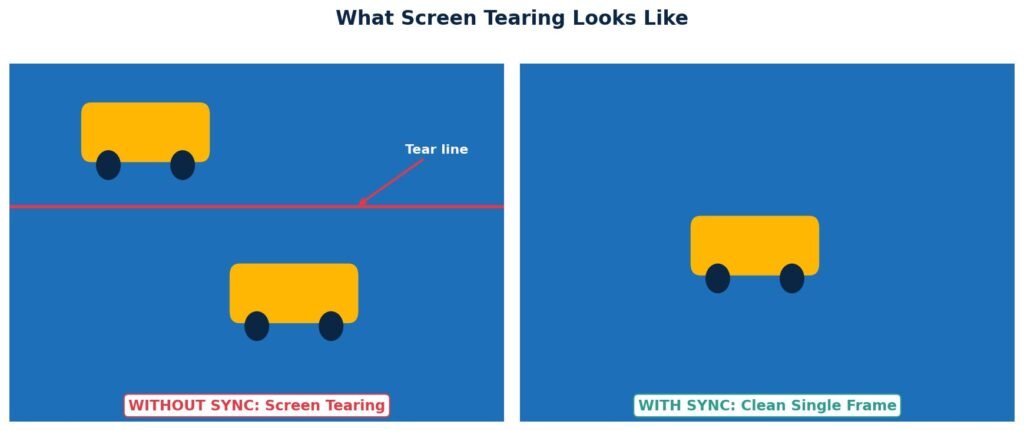
When your graphics card produces frames faster than your monitor can display them, the screen shows parts of two frames at once. This is called screen tearing, and it appears as a horizontal split across the image during motion. The Wikipedia article on screen tearing explains the underlying problem in technical detail. Sync technologies all try to prevent tearing while preserving as much smoothness and responsiveness as possible.
The visual on the left shows a single moment in which the top half of the screen is from an old frame, and the bottom half is from a new one. Your eye sees a clear break, often called the tear line, and motion looks jagged. The visual on the right shows a single, complete frame, which is what every sync technology tries to deliver.
Quick fact: Tearing is most visible during fast horizontal motion, like panning the camera in a first-person shooter or driving past a row of trees in a racing game. It is one of the most common reasons gamers feel that their hardware is not performing well, even when raw FPS is high.
V-Sync: Original Sync Method
Vertical Sync, almost always shortened to V-Sync, is the oldest sync technology and is supported by virtually every operating system, GPU, and game engine. It has been around since the days of CRT monitors and remains a fallback option to this day.
V-Sync works by forcing the GPU to wait for the monitor to finish rendering the previous frame before sending the next one. The frame rate is capped to the monitor’s refresh rate, eliminating tearing. This sounds great in theory, but the trade-offs are significant in practice.
How V-Sync Works
Imagine your monitor refreshes 60 times per second. V-Sync makes the GPU pace itself so it produces exactly 60 frames per second, perfectly aligned with each monitor’s refresh rate. The GPU may have to hold a finished frame in memory until the monitor is ready, which creates the trade-off.
V-Sync Drawbacks
V-Sync has two big disadvantages that have made it unpopular for modern gaming. First, it adds noticeable input lag, sometimes by tens of milliseconds, because frames are buffered in the rendering pipeline before being shown. In fast-paced shooters, this delay is enough to lose duels and miss shots.
Second, if your frame rate dips below the refresh rate even briefly, V-Sync drops you down to the next divisor of the refresh rate. On a 60Hz monitor, that usually means dropping from 60 FPS straight to 30 FPS, which feels much worse than a small dip would without V-Sync. The motion stutters in a way that the underlying FPS dip alone would not have produced.
When V-Sync still makes sense
Slow-paced single-player titles, retro games, emulators, and turn-based strategy games can still benefit from V-Sync. The added input lag does not hurt the experience, and the tearing prevention keeps the picture looking clean. Avoid V-Sync in first-person shooters, fighting games, and any game where reaction time matters.
G-Sync: NVIDIA Adaptive Sync Technology
G-Sync is the variable refresh rate technology built by NVIDIA, first introduced in 2013. Instead of forcing the GPU to wait for the monitor, G-Sync turns the relationship around. The monitor’s refresh rate dynamically adjusts to match the GPU’s frame rate. The result is smooth, tear-free motion with almost no added input lag. NVIDIA covers the technology in detail in its G-Sync 101 explainer.
Three G-Sync Tiers
NVIDIA divides G-Sync displays into three certification tiers, each with different hardware requirements and feature sets. Knowing which tier your monitor belongs to tells you what to expect from the experience.
G-Sync Ultimate sits at the top. These monitors include a dedicated NVIDIA hardware module, full HDR support, variable overdrive, and the widest range of variable refresh rates. They are the most expensive option but deliver the best motion clarity and color performance.
G-Sync displays without the Ultimate label still include the NVIDIA hardware module but with looser specifications. They guarantee a wide refresh rate range and variable overdrive, which maintains high motion clarity even at lower frame rates.
G-Sync Compatible monitors do not have the proprietary module at all. Instead, they support the open VESA Adaptive Sync standard, and NVIDIA has tested and validated them for use with NVIDIA GPUs. They cost less than full G-Sync hardware and cover the vast majority of mainstream gaming displays sold today.
G-Sync Hardware Requirements
G-Sync requires an NVIDIA GPU from the GTX 10 series or newer for G-Sync Compatible mode, and the GTX 650 Ti Boost or newer for full G-Sync hardware module displays. You also need a DisplayPort 1.2 cable or an HDMI 2.1 connection, depending on the monitor. Older HDMI cables will not carry the signal needed for variable refresh rate.
FreeSync: AMD Open Alternative
FreeSync is AMD’s answer to G-Sync, and it is built on the open VESA Adaptive Sync standard rather than a proprietary hardware module. Because the standard is open and royalty-free, FreeSync monitors are typically less expensive than equivalent G-Sync monitors. Details and certification information are available on the official AMD FreeSync page.
Three FreeSync Tiers
AMD also splits FreeSync into three tiers, each adding more features for more demanding gamers.
FreeSync at the entry level offers basic adaptive sync within the supported refresh rate range. There is no minimum refresh rate guarantee, no HDR requirement, and no low-frame-rate compensation requirement. It still eliminates tearing in most situations, but the experience is less consistent than on higher tiers.
FreeSync Premium adds two important features. It guarantees a minimum refresh rate of 120Hz at 1080p resolution. It includes mandatory low-frame-rate compensation, which doubles or triples each frame when your FPS falls below the monitor’s minimum refresh rate. The result is smooth motion even when performance drops.
FreeSync Premium Pro is the top tier and adds full HDR support with low latency, plus the same wide refresh rate range and low frame rate compensation as Premium. This tier directly competes with G-Sync Ultimate at a much lower price.
FreeSync Compatibility
Most modern AMD Radeon GPUs work with FreeSync out of the box. Many NVIDIA GPUs from the GTX 10 series onward also support FreeSync monitors when the monitor is connected via DisplayPort and Adaptive Sync is enabled in the NVIDIA Control Panel. Many Xbox Series X and Series S consoles also support FreeSync over HDMI 2.1, which is one of the major reasons console gamers benefit from a FreeSync-compatible TV.
How Each Sync Technology Actually Works
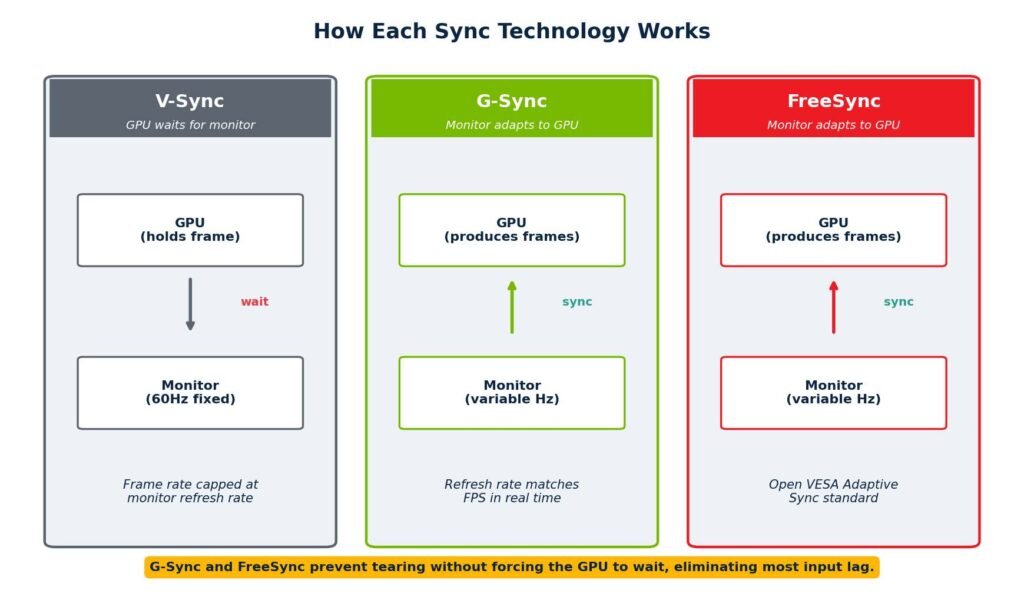
Looking at the three technologies side by side makes the differences much clearer than reading about them in isolation. The simple diagram below shows where the work happens in each system, and why two of them feel dramatically more responsive than the third.
V-Sync forces the GPU to wait, which adds input lag. G-Sync and FreeSync both let the GPU keep working at whatever pace it can, and the monitor adjusts to fit. That single architectural difference is the reason adaptive sync technologies have largely replaced V-Sync for serious gaming.
How They Compare in Practice
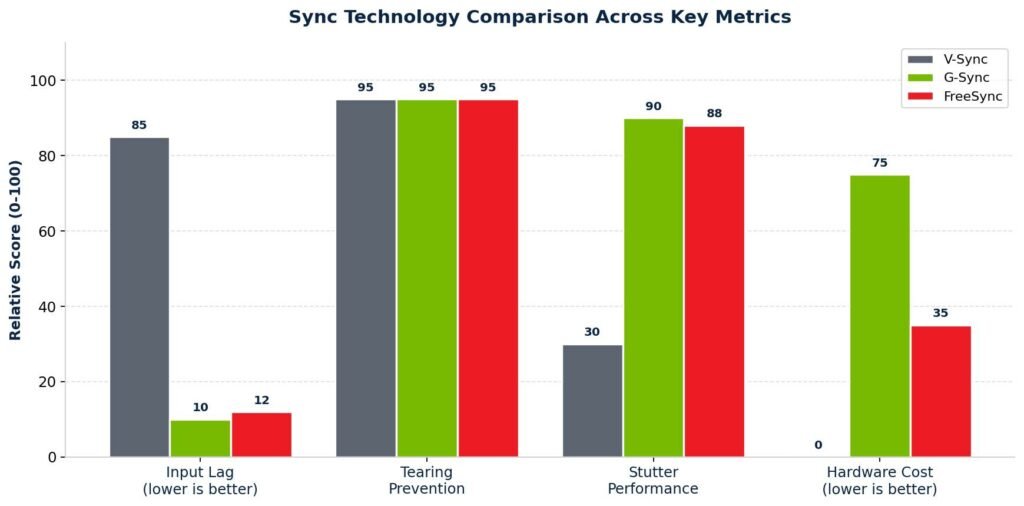
Each technology has strengths and weaknesses across the metrics gamers care about. The chart below summarizes the key differences in a single view.
Tearing Prevention
All three technologies eliminate tearing when configured correctly. V-Sync does it through a hard frame rate cap, while G-Sync and FreeSync do it through dynamic refresh rate adjustment. None of them produces visible tearing under normal conditions.
Input Lag
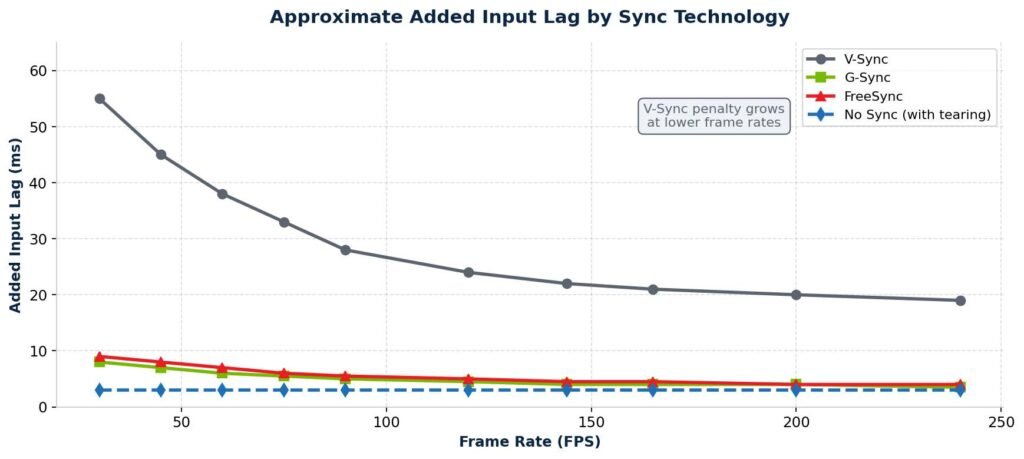
V-Sync adds the most input lag, sometimes 10-40 milliseconds, depending on settings and frame rate. G-Sync and FreeSync add almost none, which is why they are preferred for competitive gaming. The chart below shows approximately how added input lag changes with frame rate for each technology.
Stutter Behavior
V-Sync can introduce harsh stutter when FPS dips below the refresh rate. The frame rate jumps from 60 to 30 to 20, which feels jarring even though the average is fine. G-Sync and FreeSync handle these dips gracefully by adjusting the monitor’s refresh rate to match whatever the GPU can deliver, so the motion feels smooth even when raw FPS drops.
Cost and Compatibility
V-Sync is free and works everywhere. FreeSync is widely available and inexpensive because it uses an open standard. G-Sync hardware module monitors carry a premium price, but G-Sync Compatible monitors offer most of the same benefits at a much lower cost. AMD GPUs cannot use the G-Sync hardware module features, while NVIDIA GPUs can use FreeSync monitors as long as they support DisplayPort Adaptive Sync.
Certification Tiers Side by Side
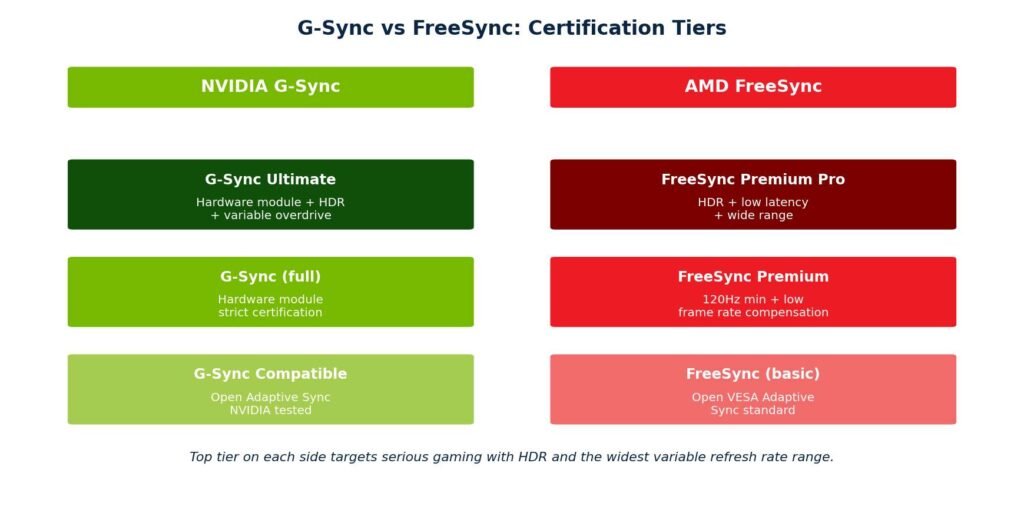
Both NVIDIA and AMD divide their adaptive sync technologies into three tiers. The chart below maps them against each other so you can see which tier on each side delivers comparable features.
The top tier on each side, G-Sync Ultimate and FreeSync Premium Pro, target serious gaming with HDR support and the widest variable refresh rate range. The middle tier covers most enthusiast displays. The entry tier handles casual gaming and cost-conscious builds.
GPU and Monitor Compatibility
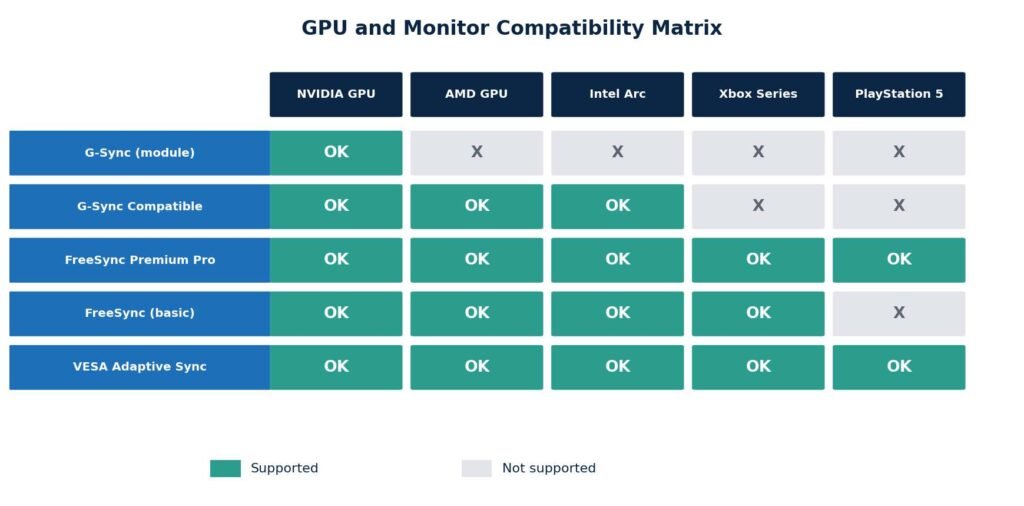
One of the most common questions buyers ask is whether their GPU will actually work with a given monitor. The matrix below shows which GPUs support which monitor types. Note that compatibility has improved significantly over time, especially since NVIDIA opened up support for VESA Adaptive Sync in 2019.
In practice, the safest path today is to buy a monitor that supports both FreeSync and G-Sync Compatible, which is now common in mid-range and high-end displays. That way, you keep your options open if you change GPU vendor in the future.
Best Practice Setup for Modern Gaming
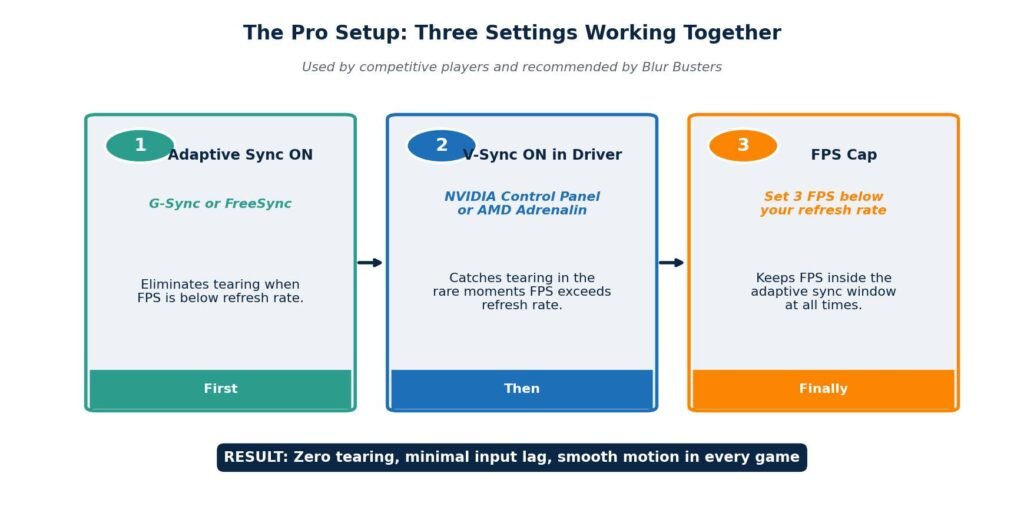
Many enthusiasts now use a combination of three settings together rather than picking one in isolation. This setup is sometimes called the Blur Busters method, after the popular display testing site that documented it. Blur Busters published a definitive G-Sync 101 settings guide that walks through this exact configuration in detail.
Setting 1: Adaptive Sync ON
Turn on G-Sync or FreeSync in your GPU control panel. This is the primary defense against tearing across the full operating range of your monitor. On NVIDIA GPUs, open the NVIDIA Control Panel, go to Display, then Set up G-Sync, and tick Enable G-Sync. On AMD GPUs, open AMD Software Adrenalin Edition, go to Display, find your monitor, and enable AMD FreeSync.
Setting 2: V-Sync ON in the Driver
Turn on V-Sync in your GPU control panel as well. Not in the game, in the driver. This setting only kicks in if your FPS exceeds the upper limit of the adaptive sync range, which would otherwise cause tearing again. Within the adaptive sync range, V-Sync does nothing, so it adds no input lag in normal gameplay.
On NVIDIA, set Vertical Sync to On in the Manage 3D Settings page. On AMD, set Wait for Vertical Refresh to Always On in the Adrenalin Graphics tab.
Setting 3: Frame Rate Cap
Set a frame rate cap that is about 3 FPS below your monitor’s refresh rate. For a 144Hz monitor, cap at 141 FPS. For a 165Hz monitor, cap at 162 FPS. This ensures your FPS never reaches the ceiling of the adaptive sync range, keeping the entire system permanently in the smooth zone.
You can apply the cap in the NVIDIA Control Panel using Max Frame Rate, in AMD Adrenalin using Radeon Chill or Frame Rate Target Control, or in third-party tools like RivaTuner Statistics Server. In-game frame rate caps also work as long as the engine respects them exactly.
Why this combo works
Adaptive Sync handles the range of FPS below your refresh rate. The frame rate cap prevents you from ever reaching the upper limit. V-Sync sits in reserve as a backup that only activates if something unusual pushes FPS over the cap. The result is zero tearing, zero input lag from V-Sync in normal gameplay, and graceful behavior in every scenario.
Which Sync Should You Choose
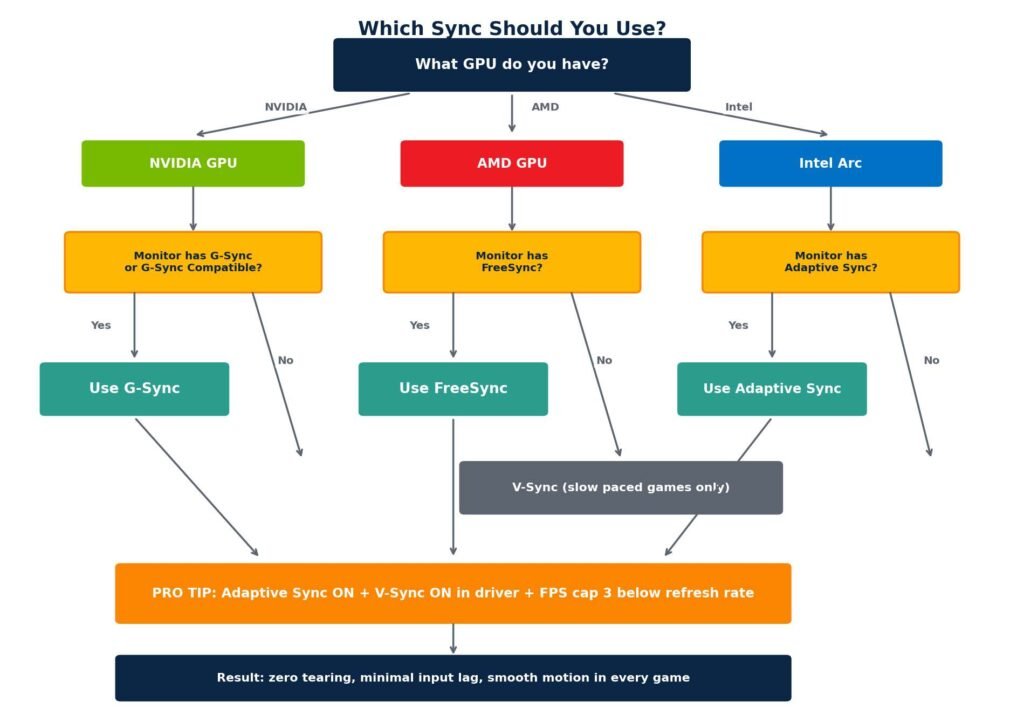
Here is a simple decision flowchart that walks you through the choice based on your hardware. Follow the path that matches your GPU and monitor, and you will land on the right answer in under a minute.
If You Have an NVIDIA GPU
Look for G-Sync Compatible certification at a minimum on any new monitor. Full G-Sync or G-Sync Ultimate is worth the Premium only if you want guaranteed variable overdrive and the widest refresh rate range. For most gamers, a G-Sync Compatible display delivers 90% of the experience at a much lower price.
If You Have an AMD GPU
Look for FreeSync Premium or FreeSync Premium Pro certification. The basic FreeSync tier still works, but the Premium tiers guarantee a smoother experience at lower frame rates thanks to mandatory low-frame-rate compensation.
If You Have an Intel Arc GPU
Intel Arc GPUs support VESA Adaptive Sync and work with FreeSync displays out of the box. Enable Adaptive Sync in the Intel Arc Control panel, and you are set. Intel does not have a proprietary sync technology of its own, which actually makes the choice easier.
If You Cannot Use Adaptive Sync
V-Sync is acceptable for slow-paced single-player games, but should generally be left off for competitive multiplayer. If you cannot afford a new monitor with adaptive sync, focus on upgrading the monitor first before any other component. The visual upgrade from a 60Hz display without sync to a 144Hz adaptive sync display is one of the biggest single improvements you can make to a gaming setup.
How to Test Your Sync Setup
Once you have everything configured, verify that it actually works. Sync settings can silently fail due to an old cable, the wrong port, or a software override, so a quick test saves you from playing for weeks before noticing something is off.
Step 1: Check the Browser FPS
Run the FrameRateTest.net tool to confirm your browser is hitting your full refresh rate. If you have a 144Hz monitor and the browser test only reports 60 FPS, something is wrong before you even launch a game. Check your refresh rate setting in the operating system display panel and make sure your cable supports the rate you want.
Step 2: Use a Pendulum Test
Several websites, including the official NVIDIA G-Sync demo page, provide a pendulum animation that swings across the screen at a configurable frame rate. With sync working correctly, the swing looks smooth at any FPS. With sync off, you should see clear tearing during the fastest part of the swing. If the test looks identical with sync on and off, sync is not actually engaged.
Step 3: Watch the Frame Time Graph in Game
Inside games, use the Steam overlay or your GPU vendor overlay to monitor frame rate alongside frame time. If FPS fluctuates wildly but motion still looks smooth, your adaptive sync is working as intended. If FPS is steady but motion still tears, sync is probably off, or the cable is the issue.
Step 4: Confirm Refresh Rate Changes in Real Time
On NVIDIA GPUs, install RivaTuner Statistics Server and enable the refresh rate display. You should see the number change in real time as your in-game FPS changes. On AMD, the Adrenalin overlay shows the same data. If the refresh rate stays locked at a single value while the FPS varies, adaptive sync is not working.
Common Mistakes That Break Sync
Plenty of gamers turn on adaptive sync and assume it is working without ever verifying. These are the most common reasons it silently fails.
- Using a low-quality HDMI cable. Variable refresh rate over HDMI requires HDMI 2.1 for the best results. Many older cables drop the signal even if they fit.
- Connecting to the wrong port. Some monitors only support adaptive sync on specific inputs, usually DisplayPort 1.2 or higher and HDMI 2.1.
- Running in windowed mode instead of full-screen or borderless. Some adaptive sync implementations only work properly in true full screen.
- Leaving in-game V-Sync on at the same time as driver V-Sync. Pick one location, usually the driver.
- Not enabling FreeSync in the monitor’s on-screen display menu. Many displays ship with the feature off by default.
- Trying to use adaptive sync on a TV without HDMI 2.1 or VRR support, even when both the GPU and console claim it should work.
- Forgetting to set a frame rate cap, which lets FPS climb above the adaptive sync ceiling, brings tearing back.
Conclusion
Sync technologies are some of the most underused tools in modern gaming. V-Sync is a legacy fix with real downsides that gamers should generally avoid in fast-paced titles. G-Sync and FreeSync are modern solutions that deliver smooth, tear-free motion with minimal input lag, and they are now affordable enough to recommend for any new monitor purchase.
Pair the right adaptive sync technology with V-Sync as a backup and a sensible frame rate cap, and your monitor will feel meaningfully better in every game you play. The difference is not subtle. Once you have a properly configured adaptive sync setup, going back to a non-sync display feels noticeably worse, even at the same refresh rate and FPS.
If you want to verify your refresh rate is hitting its full advertised value at any point, bookmark FrameRateTest.net and run a quick check whenever you change cables, drivers, or display settings. It takes ten seconds and saves hours of frustration.
Disclaimer
This article is provided for informational and educational purposes only. Frame rate, refresh rate, and hardware performance can vary widely depending on your device, drivers, browser, operating system, cable quality, monitor firmware, and background workload. Results from any browser-based testing tool, including the one referenced on this site, are approximate and should be treated as a guideline rather than a precise hardware benchmark.
Brand names, software, and products mentioned in this article are the property of their respective owners and are referenced only for clarity and educational context. We are not affiliated with NVIDIA, AMD, Intel, Microsoft, Sony, Blur Busters, the VESA standards body, or any other company mentioned unless explicitly stated. Always confirm settings and specifications with your device manufacturer before making purchasing or hardware decisions.