
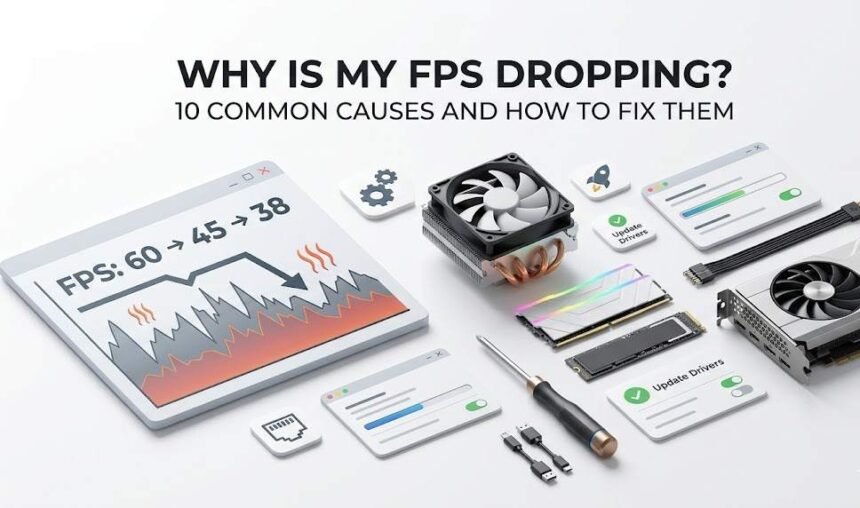
Few things are more frustrating than launching your favorite game only to watch the frame rate tank mid-fight. FPS drops wreck immersion, hurt competitive performance, and can make even a powerful PC feel cheap—the good news: almost every FPS drop has a diagnosable cause and a clear fix.
Quick-Reference: FPS Drop Causes at a Glance
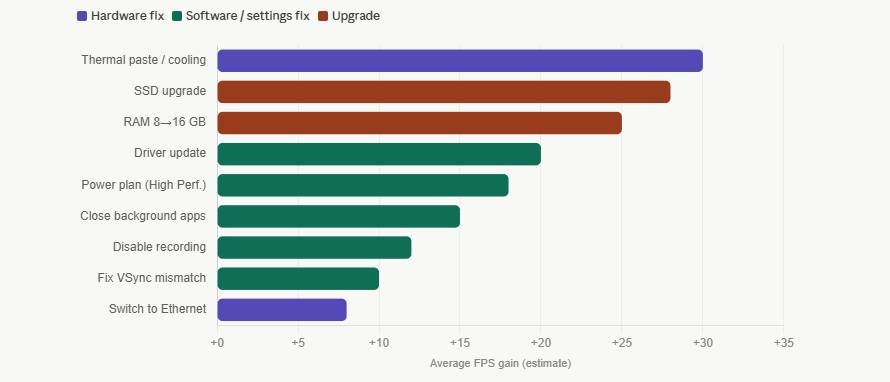
| # | Cause | Difficulty to Fix | Cost | Most Common On |
| 1 | Thermal throttling | Medium | Free–$20 | Laptops, older desktops |
| 2 | Background apps | Easy | Free | All systems |
| 3 | Outdated drivers | Easy | Free | NVIDIA/AMD GPU users |
| 4 | Power settings | Easy | Free | Laptops |
| 5 | Slow storage | Medium | $30–$80 | HDD users |
| 6 | Insufficient RAM | Hard | $30–$80 | 8 GB systems |
| 7 | Recording/streaming | Easy | Free | Streamers |
| 8 | VSync/sync mismatch | Easy | Free | All systems |
| 9 | Game bugs/memory leaks | Easy | Free | Long-session gamers |
| 10 | Network lag | Easy–Medium | Free–$20 | Online multiplayer |
1. Thermal Throttling
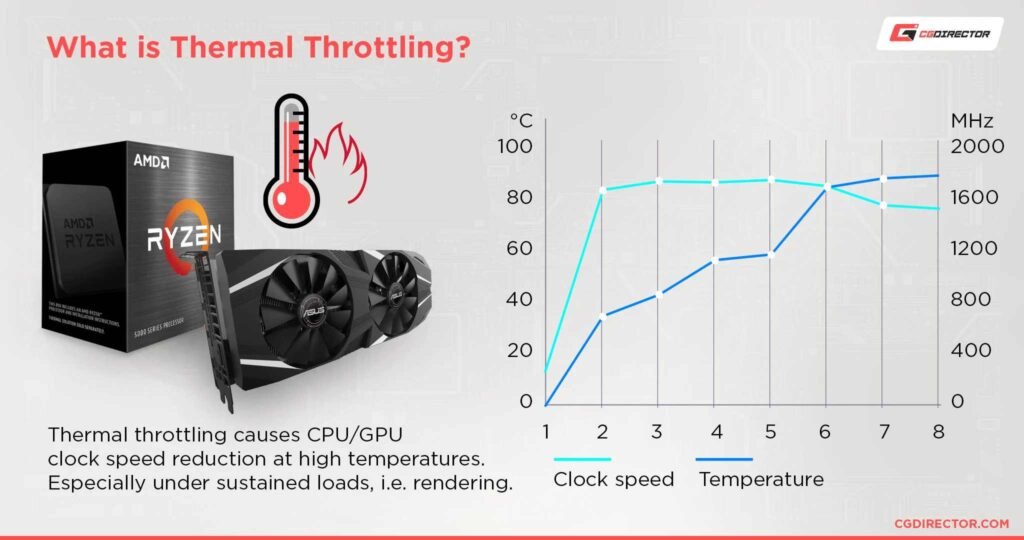
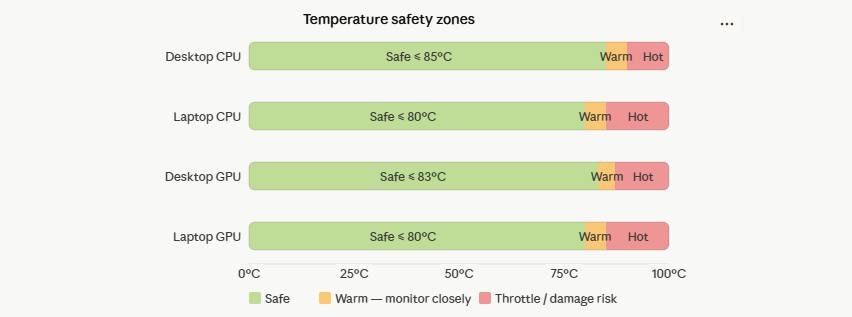
What it is: When your CPU or GPU exceeds its safe temperature threshold, it deliberately reduces its clock speed to prevent damage. This is called thermal throttling, and it is the single most common cause of FPS drops that start strong and gradually worsen the longer you play.
How to spot it: Download HWiNFO64 or MSI Afterburner and monitor temperatures in real time while gaming. Safe ranges are generally:
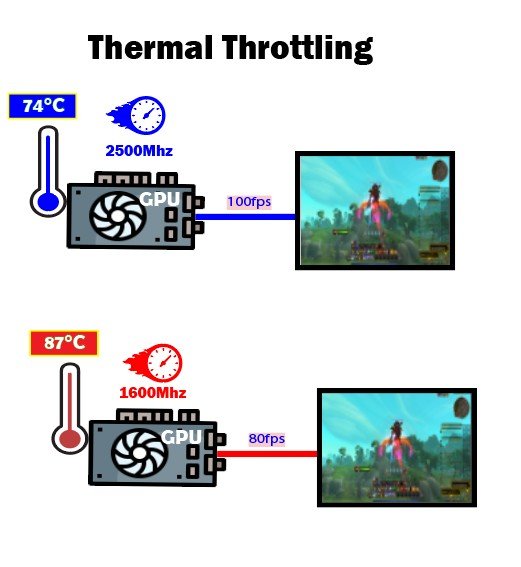
| Component | Safe Zone | Throttle Risk |
| CPU (desktop) | Below 85°C | Above 90°C |
| CPU (laptop) | Below 80°C | Above 85°C |
| GPU (desktop) | Below 83°C | Above 87°C |
| GPU (laptop) | Below 80°C | Above 85°C |
How to fix it:
- Clean dust from all fans and heatsinks using compressed air
- Replace thermal paste on CPUs or GPUs older than 3–4 years (use Thermal Grizzly Kryonaut)
- Improve case airflow with additional intake and exhaust fans
- For laptops, use a cooling pad and ensure the vents are not blocked
- Intel’s official CPU temperature monitoring guide covers the process in detail
2. Background Applications Stealing Resources
Every app running in the background competes with your game for CPU time, RAM, and disk bandwidth. Browsers with many tabs, cloud sync services (OneDrive, Dropbox, Google Drive), Windows Update, and antivirus scans are the biggest offenders.
How to fix it:
- Open Task Manager (Windows: Ctrl + Shift + Esc) or Activity Monitor (macOS)
- Sort by CPU and Memory, and close anything non-essential
- Disable startup programs via Task Manager → Startup tab
- Pause cloud sync clients before long sessions
- Set your antivirus to gaming mode or schedule scans for off-hours
Common background culprits to close:
| App Type | Examples | Resource Consumed |
| Browsers | Chrome, Edge, Firefox | RAM, CPU |
| Cloud sync | OneDrive, Dropbox | Disk, CPU |
| Communication | Discord (screen share on) | GPU, CPU |
| Update agents | Windows Update | Disk, CPU |
| Antivirus scans | Windows Defender, Malwarebytes | Disk, CPU |
3. Outdated or Buggy Graphics Drivers
Driver updates are not just security patches; they include game-specific optimizations and fix performance regressions. Running a driver that is several months old can cost you 10–20% performance in newly released titles.
How to fix it:
- Download the latest stable driver directly from NVIDIA GeForce Drivers or AMD Drivers and Support
- Use DDU (Display Driver Uninstaller) from Guru3D for a completely clean install if you suspect driver corruption
- If a new driver causes problems, roll back via Device Manager → Display Adapters → Driver → Roll Back Driver
- Intel integrated graphics users can update via Intel Driver & Support Assistant
4. Power Settings Holding You Back
This is the easiest fix with one of the biggest potential payoffs, especially on laptops. Operating systems default to balanced or power-saving modes that throttle CPU and GPU performance to preserve battery life.
Windows:
- Open Control Panel → Power Options
- Select High Performance (or Ultimate Performance if available)
- Make sure the laptop is plugged in while gaming
macOS:
- Open System Settings → Battery
- Set High Power Mode when plugged in
NVIDIA GPU users: Open NVIDIA Control Panel → Manage 3D Settings → Power Management Mode → Set to Prefer Maximum Performance
AMD GPU users: Open AMD Software → Performance → Tuning → Power Tuning → Set to Maximum
5. Storage Drive Bottleneck
Modern games stream textures, audio, and world geometry continuously while you play. If your game is installed on a mechanical hard drive (HDD), the drive cannot feed data to the GPU fast enough, causing visible stutters and apparent FPS drops during area transitions, explosions, and dense scenes.
How to identify it: Watch disk activity in Task Manager. If disk usage spikes to 100% during stutters, storage is the problem.
Drive speed comparison:
| Drive Type | Sequential Read | Stutter Risk | Recommendation |
| 5400 RPM HDD | ~100 MB/s | Very High | Avoid for gaming |
| 7200 RPM HDD | ~150 MB/s | High | Acceptable for old titles only |
| SATA SSD | ~550 MB/s | Low | Good baseline |
| NVMe Gen 3 | ~3,500 MB/s | Very Low | Recommended |
| NVMe Gen 4 | ~7,000 MB/s | Near Zero | Best option |
Even a budget SATA SSD like the Samsung 870 EVO eliminates most storage-related stutters compared to an HDD.
6. Insufficient System Memory (RAM)
AAA titles in 2024–2025 regularly demand 12–16 GB of RAM. If your system only has 8 GB, the OS constantly offloads data to your much slower storage drive via a process called paging, which destroys frame rate consistency.
Recommended RAM by use case:
| Use Case | Minimum | Recommended |
| Casual/older titles | 8 GB | 16 GB |
| Modern AAA gaming | 16 GB | 32 GB |
| Gaming + streaming | 16 GB | 32 GB |
| Video editing + gaming | 32 GB | 64 GB |
Also, check that your RAM is running in dual-channel mode (two sticks, correct slots per your motherboard manual). Dual-channel can improve gaming performance by 5–15% at no extra cost. Use CPU-Z to verify.
7. Background Recording or Streaming
Screen capture tools use GPU encoder resources that would otherwise go entirely to rendering your game. Even when they appear idle, some tools remain active and consume resources.
Tools to check and disable when not in use:
| Tool | Where to Disable |
| NVIDIA ShadowPlay / Instant Replay | GeForce Experience → Settings → In-Game Overlay |
| AMD ReLive | AMD Software → Gaming → Recordings |
| OBS Studio | Exit the application entirely |
| Discord screen share | Stop Share in the Discord call |
| Xbox Game Bar | Windows Settings → Gaming → Xbox Game Bar → Off |
If you are actively streaming, lower your encoding resolution (e.g., from 1080p60 to 720p60) or switch to NVENC/AMF hardware encoding to reduce CPU load. The OBS Studio documentation has a detailed streaming optimization guide.
8. VSync, Frame Rate Caps, and Sync Mismatches
VSync locks your frame rate to your monitor’s refresh rate to prevent screen tearing. The problem: if your game dips even slightly below the target (say, from 60 FPS to 59 FPS), VSync can force the frame rate down to the next divisor, in this case, 30 FPS, causing a jarring drop.
Best practice settings by hardware:
| Monitor Type | Recommended Setting |
| Standard 60 Hz (no adaptive sync) | VSync On, cap at 58 FPS |
| G-Sync monitor (NVIDIA GPU) | Enable G-Sync, cap 3 FPS below max refresh |
| FreeSync monitor (AMD GPU) | Enable FreeSync, cap 3 FPS below max refresh |
| High refresh (165 Hz+), no adaptive sync | VSync Off, in-game cap at 160 FPS |
NVIDIA’s G-Sync 101 explainer is the most thorough resource available on adaptive sync technologies and how to configure them correctly.
9. Game Bugs and Memory Leaks
Some games allocate memory over time without ever releasing it, a bug known as a memory leak. FPS starts healthy at session launch and slowly degrades the longer you play, even if you are in the same area. VRAM leaks behave the same way, filling your GPU’s memory until performance collapses.
Signs of a memory leak:
- FPS is great for the first 30–60 minutes, then drops progressively
- Restarting the game restores performance completely
- RAM or VRAM usage climbs steadily without returning to a baseline
What to do:
- Restart the game every 1–2 hours as a short-term workaround
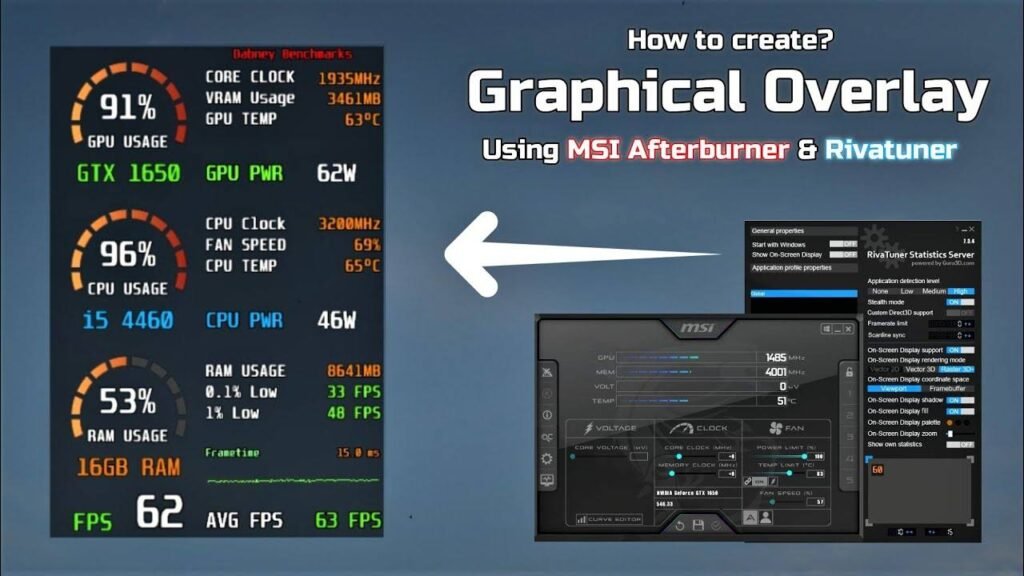
- Monitor VRAM usage with MSI Afterburner’s overlay
- Check the game’s official subreddit or forums for reports and patches
- Verify game file integrity via Steam (Library → Right-click game → Properties → Local Files → Verify) or your launcher
10. Network Issues That Look Like FPS Drops
In online multiplayer, high ping, packet loss, and jitter produce symptoms that feel identical to FPS drops: stutters, rubber banding, missed inputs, and enemies teleporting. Your GPU may be rendering 120 FPS perfectly, while the network makes the game feel like it is running at 20.
How to diagnose it:
- Enable the in-game network overlay (most modern games include one)
- Run a ping test to the game server using PingTest.net or fast.com
- Check packet loss with WinMTR (Windows) or traceroute (macOS/Linux)
Fixes ranked by effectiveness:
| Fix | Effort | Expected Improvement |
| Switch from Wi-Fi to wired Ethernet | Low | High |
| Reboot router and modem | Very Low | Medium |
| Connect to a closer game server/region | Low | High |
| Upgrade internet plan | Medium | High (if bandwidth-limited) |
| Use a gaming router with QoS | High | Medium–High |
| Contact ISP about line instability | Medium | Depends on ISP |
How to Diagnose Any FPS Drop Systematically
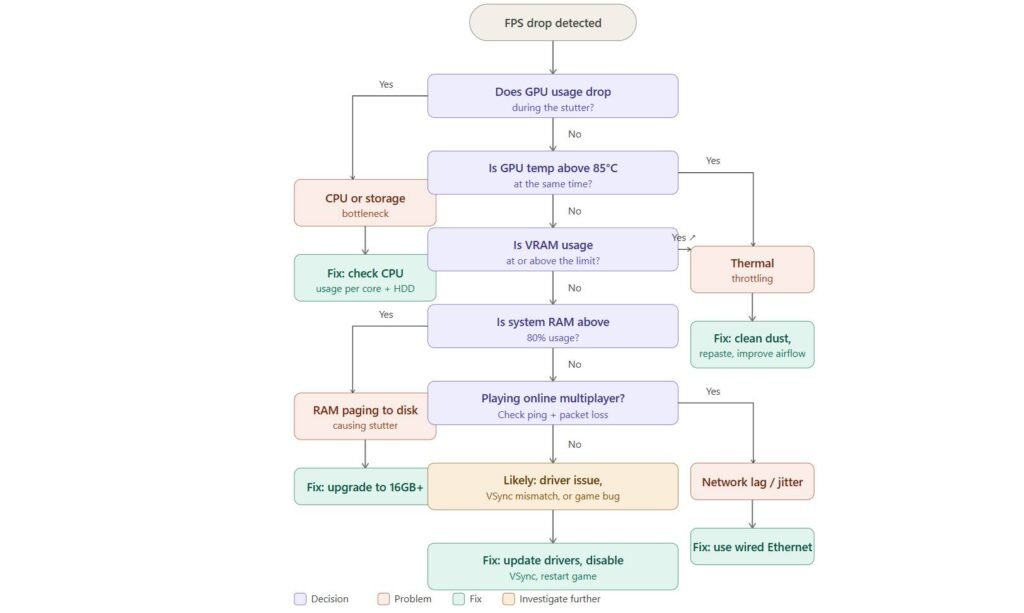
Rather than guessing, use this decision tree to zero in on the cause:
Rather than guessing, use this decision tree to zero in on the cause:
Is GPU usage dropping during the FPS drop?
YES → Bottleneck is upstream of the GPU: CPU, RAM, or storage
NO → Is GPU temperature climbing above 85°C at the same time?
YES → Thermal throttling
NO → Is VRAM usage maxed out?
YES → VRAM overflow; reduce texture quality or upgrade GPU
NO → Driver issue, game bug, or VSync mismatch
Run all these monitors simultaneously during a gaming session:
| Tool | Metric | Warning Threshold |
| MSI Afterburner | GPU usage | Drops below 90% during stutters = CPU/storage bottleneck |
| HWiNFO64 | GPU temperature | Above 85°C = throttling likely |
| Task Manager | CPU usage per core | Any single core at 100% = CPU bottleneck |
| Task Manager | RAM usage | Above 80% of total = paging risk |
| MSI Afterburner | VRAM usage | At or above limit = overflow stutter |
| Task Manager | Disk activity | Sustained 100% = storage bottleneck |
| CapFrameX | Frame time | Spikes above 33 ms = perceived stutter |
5-Minute Pre-Game Checklist
Before every gaming session, run through these quick wins:
- [ ] Close browser tabs and non-essential apps
- [ ] Pause cloud sync clients (OneDrive, Dropbox, Google Drive)
- [ ] Plug in your laptop and set the power plan to High Performance
- [ ] Confirm GPU drivers are up to date
- [ ] Disable Xbox Game Bar and ShadowPlay if not streaming
- [ ] Switch to wired Ethernet if playing online multiplayer
Conclusion
FPS drops are almost always solvable with the right diagnosis. Start with the free, five-minute fixes: closing background apps, updating drivers, and correcting your power plan. Move into hardware checks like cleaning dust and verifying temperatures. Then investigate storage, RAM, and sync settings. Work through this guide systematically, and you will find the specific cause that is hurting your session.
For ongoing monitoring, keep MSI Afterburner and HWiNFO64 running as an overlay during play. The data they provide will tell you exactly what your system is doing at the moment a drop occurs, no guesswork needed.
This article is for informational and educational purposes only. Performance results vary by device, drivers, operating system, and background workload. Always verify hardware specifications with your manufacturer before making purchasing decisions.