
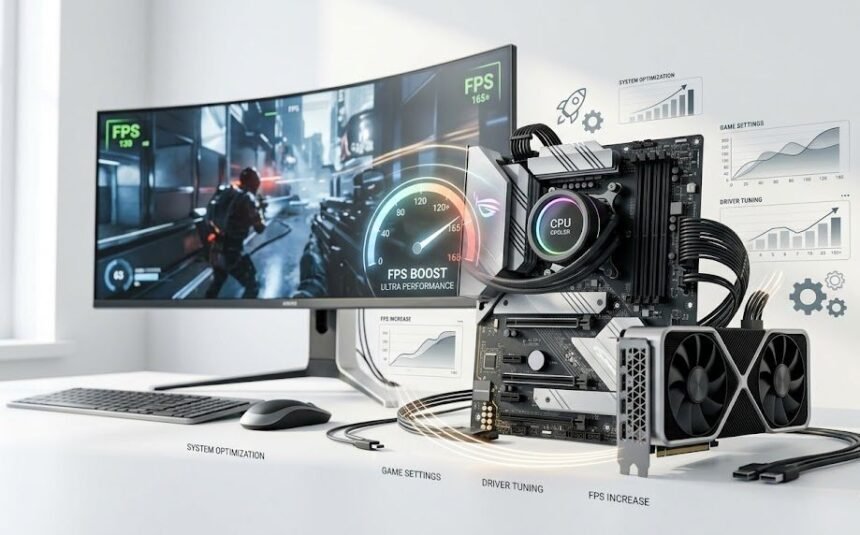
| Most performance problems can be fixed without buying new hardware. With the right combination of system tweaks, driver updates, and in-game settings, you can often squeeze 20 to 50 percent more FPS out of the same machine. This guide collects 15 of the most effective tips, ordered from easiest to most advanced. |
Why Frame Rate Matters More Than Most Settings
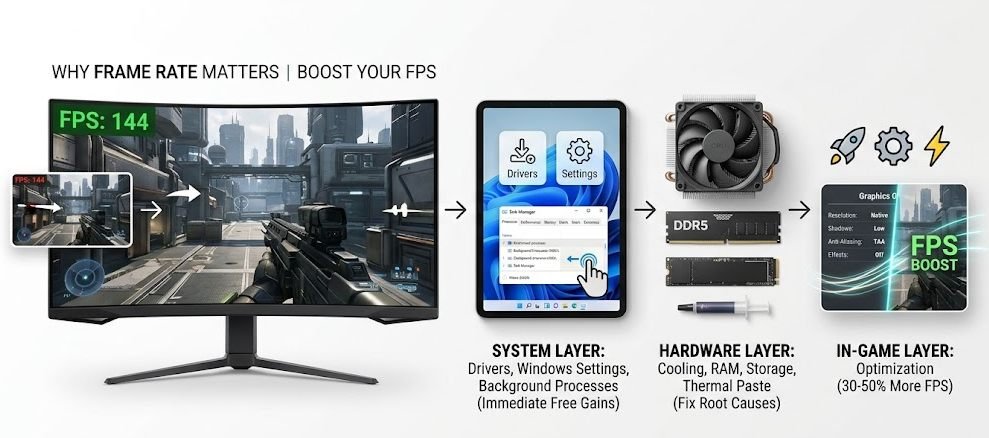
Low frame rates can ruin even the best game. Stutters break immersion, input lag costs you reactions, and unstable FPS makes everything feel inconsistent. The good news is that nearly every system has untapped performance hiding in software, settings, and basic maintenance, before you ever need to think about new parts.
Try the tips below in order and run a quick frame rate test between changes. That way you can see exactly which adjustments are pulling the most weight on your specific setup.
| System layer Drivers, Windows settings, and background processes. Free fixes that take five minutes and often deliver the biggest gains. | In-game layer Resolution, shadows, anti-aliasing, and effects. The fastest way to add 30 to 50 percent more FPS in any title. | Hardware layer Cooling, RAM, storage, and thermal paste. Inexpensive upgrades that fix the root cause when software tweaks alone are not enough. |
System and Driver Optimization
Start here. These five tips cost nothing and fix the most common reasons a capable PC underperforms.
Update Your Graphics Drivers
Outdated drivers are the single most common cause of low FPS. NVIDIA and AMD release new drivers regularly with game-specific optimizations. Intel users can grab updates from the Intel Download Center. Always install the latest stable version before troubleshooting anything else.
Enable Game Mode in Windows
Windows 11 and Windows 10 include a Game Mode that prioritizes GPU resources for the active game. Turn it on under Settings, Gaming, Game Mode. This single toggle can stabilize frame pacing in CPU-heavy titles.
Close Background Applications
Browsers, chat apps, video conferencing tools, and update services quietly steal CPU time and memory. Use Task Manager on Windows or Activity Monitor on macOS to close anything you do not need before launching a game.
4. Set Your Power Plan to High Performance
On laptops in particular, the default Balanced power plan limits CPU and GPU clock speeds to save battery. Switch to High Performance or Ultimate Performance when plugged in to unlock the full speed of your hardware.
Disable Background Recording and Overlays
Tools like Discord overlays, Xbox Game Bar capture, and GeForce ShadowPlay constantly use a small amount of GPU time. If you are not actively recording, disable them to reclaim those frames.
| Quick Win: Just doing tip 1 and tip 5 together fixes low FPS in roughly half of all cases. If you only have time for two changes, start with these. |
In-Game Settings That Matter Most
Not all graphics settings cost the same. Some deliver almost no visual benefit at maximum and crush your frame rate. Knowing which ones to drop first is the single biggest skill in PC gaming.
Settings Impact at a Glance
| Setting | FPS Impact | Visual Cost When Lowered |
| Resolution | Very High | Noticeable softness, easily masked with DLSS or FSR upscaling. |
| Shadow quality | High | Minimal at High versus Ultra. Big jump again at Low. |
| Anti-aliasing | Medium | TAA and FXAA look almost identical to MSAA at a fraction of the cost. |
| Reflections | High | Screen-space reflections look fine at Medium in most scenes. |
| Volumetric fog | High | Mostly visible in cinematic moments, safe to drop in fast play. |
| Ray tracing | Very High | Stunning when on, but the first thing to disable for big FPS gains. |
| Draw distance | Medium | Distant objects pop in earlier, rarely noticed in combat. |
| Texture quality | Low if VRAM allows | Huge visual benefit, keep this high whenever possible. |
Lower Resolution or Use Upscaling
Resolution has the biggest impact on FPS of any setting. Dropping from 4K to 1440p, or from 1440p to 1080p, can double your frame rate. Modern upscaling technologies like NVIDIA DLSS and AMD FidelityFX Super Resolution let you keep visual sharpness while rendering at a lower internal resolution.
Reduce Shadow Quality
Shadows are one of the most performance-hungry effects in any game. Dropping shadow quality from Ultra to High or Medium often delivers 10 to 20 percent more FPS with minimal visual loss.
Turn Off or Lower Anti-Aliasing
Anti-aliasing smooths jagged edges but at a real performance cost. Try TAA or FXAA instead of MSAA. Both give a clean image with much less GPU load.
Drop Reflections, Volumetrics, and Ray Tracing
Screen-space reflections, volumetric fog, and especially ray tracing place huge demands on the GPU. Disable or lower these first if you are struggling to hit your target frame rate.
Limit Draw Distance
In open-world games, view distance and foliage density can be reduced significantly without breaking immersion. The CPU saves time on objects you can barely see, and FPS rises as a result.
| Pro Tip: Change one setting at a time and test for 30 seconds. Bundling five changes together makes it impossible to know which one actually helped, and you may end up disabling a setting that was free. |
Hardware and System Health
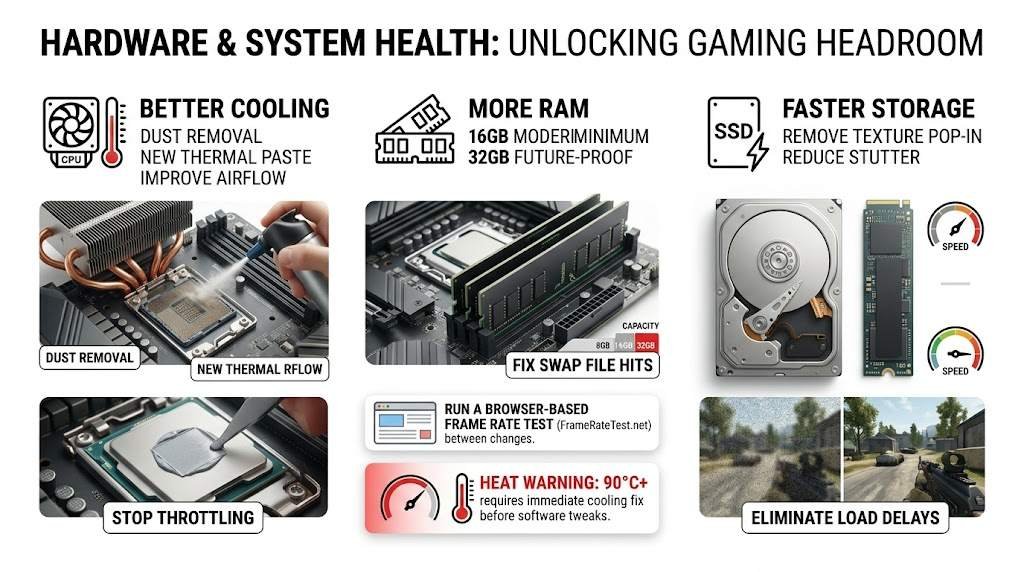
When software tweaks have been fully exhausted, a few inexpensive hardware fixes can restore lost performance or unlock new headroom.
| Better cooling Dust removal, fresh thermal paste, and good airflow stop your CPU and GPU from throttling under load. | More RAM 16GB is the modern minimum. 32GB future-proofs you for the next several years of new releases. | Faster storage An SSD removes texture pop-in and stutter. Even a budget SATA model is dramatically faster than a hard drive. |
Clean Out Dust and Improve Cooling
If your CPU or GPU overheats, it will throttle clock speeds to protect itself. Open your PC, blow out dust with compressed air, and make sure all fans spin freely. On laptops, use a cooling pad and play on a hard flat surface, never on a bed or sofa.
Reapply Thermal Paste on Older Hardware
Thermal paste between the CPU and its cooler dries out over years. If your machine is more than three or four years old and runs hot, reapplying paste can lower temperatures by ten degrees or more, which directly translates to better sustained FPS.
Add or Upgrade RAM
Modern games perform best with at least 16GB of RAM, and many newer titles benefit from 32GB. If you are running 8GB and your game is constantly hitting the swap file, adding RAM is one of the cheapest performance upgrades you can make.
Move Games to an SSD
Solid-state drives load assets faster than mechanical hard drives, which reduces texture pop-in and stutter in open-world games. Even a budget SATA SSD makes a noticeable difference compared to a spinning disk.
Run a Browser-Based Frame Rate Test Between Changes
Use FrameRateTest.net to quickly check baseline performance before and after each tweak. While in-game counters give the most accurate gameplay numbers, a browser test is a fast way to confirm that your display, drivers, and hardware are still cooperating after each adjustment.
| Heat Warning: If your laptop or desktop hits 90 degrees Celsius or higher under gaming load, fix the cooling before chasing FPS in software. Throttled hardware will undo every tweak you make until temperatures come back under control. |
Recommended Order to Apply These Tips
Working through the list randomly tends to waste effort. This sequence delivers the biggest gains in the shortest time:
- Step 1: Update graphics drivers and disable overlays. Test FPS.
- Step 2: Enable Game Mode and switch to High Performance power plan. Test again.
- Step 3: Close background apps and free up RAM. Confirm gain.
- Step 4: Drop resolution one tier or enable DLSS, FSR, or XeSS upscaling.
- Step 5: Lower shadows, then reflections, then ray tracing in that order.
- Step 6: If still struggling, address cooling, RAM, and SSD upgrades.
You do not need to spend money to gain frames. Driver updates, smart in-game settings, basic system maintenance, and a few cooling improvements can transform a struggling setup into a smooth one. Work through this list step by step, measure the results between each change, and you will find the exact combination that gives your particular machine the best frame rate it can produce. |
| Disclaimer: This article is provided for informational and educational purposes only. Frame rate, refresh rate, and hardware performance can vary widely depending on your device, drivers, browser, operating system, and background workload. Results from any browser-based testing tool are approximate and should be treated as a guideline rather than a precise hardware benchmark. Brand names, software, and products mentioned are the property of their respective owners and are referenced only for clarity. Always confirm settings and specifications with your device manufacturer before making purchasing or hardware decisions. |